Recording and telehealth
Write Notes or Upload Audio
Write a note or upload audio from a session. Nextvisit can use the audio to create a note.
You can write a note with a template. You can also upload audio and let Nextvisit make a transcript and note. For a live visit, see Record a Live Session. To import from Pocket, see Pocket Integration.
Write a note
Click Write a note to open the editor. In Classic view, click New Note. Then:
- Select the patient. To make a new chart, click Create Patient. See Create a patient from search.
- Select the provider for the note.
- Select a template. The list has built-in and custom templates.
- Write the note on the Note tab.
After you select a patient, the Context tab appears. Add medications, allergies, or other information for the note there. This information does not become note text. If the patient has documents, the Documents tab appears. Use it to link documents.
Press ⌘/Ctrl + Enter or click Create note to create the note.
Upload audio
Click Upload audio to open the Upload Audio window. Then:
- Select the patient.
- Select the provider.
- Select a template. The list has built-in and custom templates.
- Drag an audio file to the upload area or click the area to select a file. The supported formats are MP3, WAV, FLAC, WEBM, OGG, MP4, MOV, and M4A.
- Add Context if you want Nextvisit to use medications, allergies, or conditions.
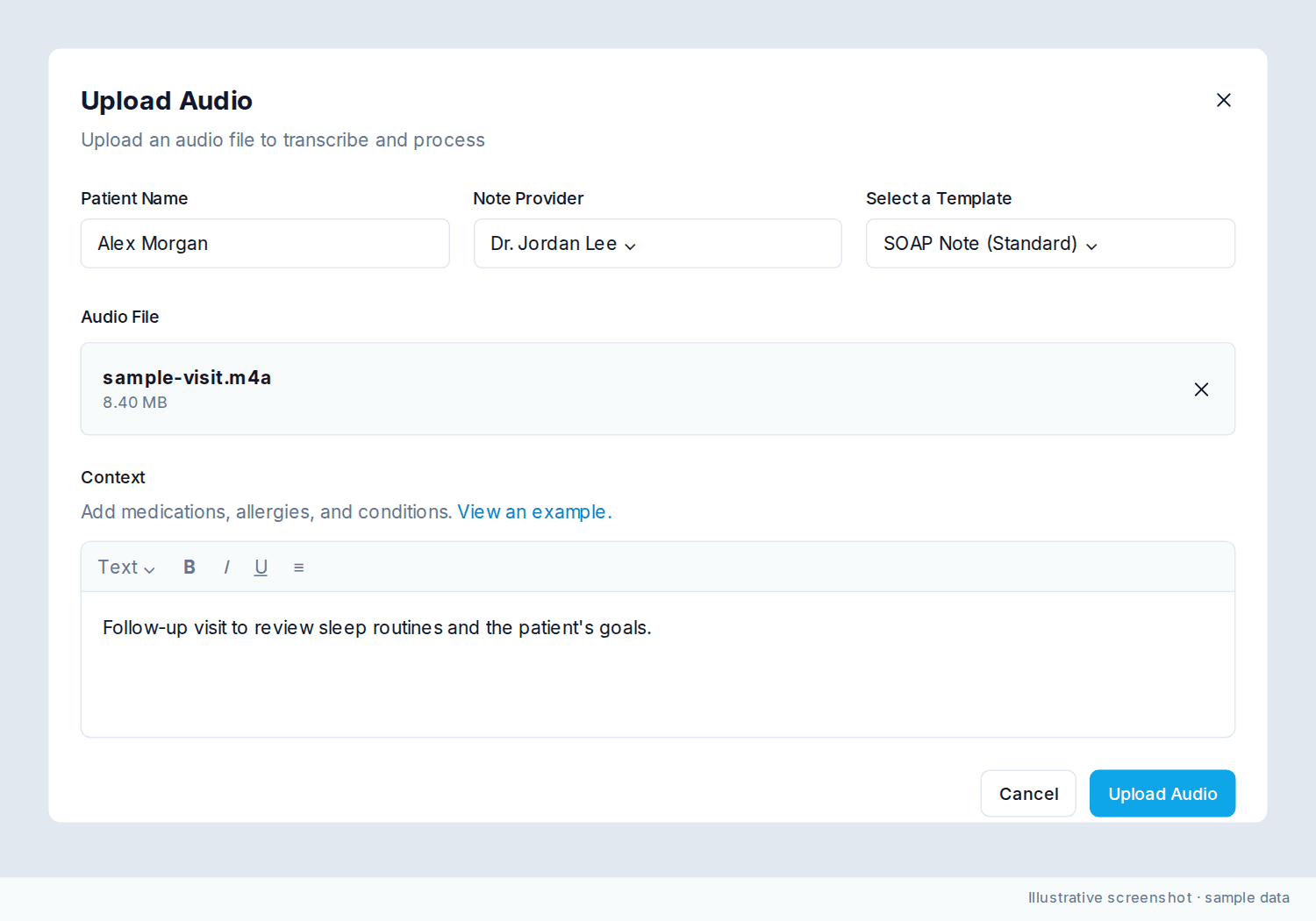
Click Upload Audio. Nextvisit transcribes the recording and uses your template to generate a note. You can close the window during this process.
Pocket recordings
A Pocket cloud import uses the transcript from Pocket. For a Pocket USB Import, upload the audio files as described above.
Was this article helpful?
Still stuck? Our team answers in the messenger.