Apps and API
Pocket Integration
Connect Pocket (Beta). Import recordings as notes or drafts. Set automations or import files from a USB device.
Pocket records sessions when you are away from the browser. The Nextvisit integration is in Beta. Open Apps & Shortcuts → Apps → Pocket (Beta) → Sync Device. After you connect your account to this workspace, Pocket also appears under Apps in the sidebar.
You can import recordings with Cloud Sync (Recommended) and a Pocket API key. You can also use USB Import from the device.
Learn more about the device at heypocket.com.
Pocket integration overview
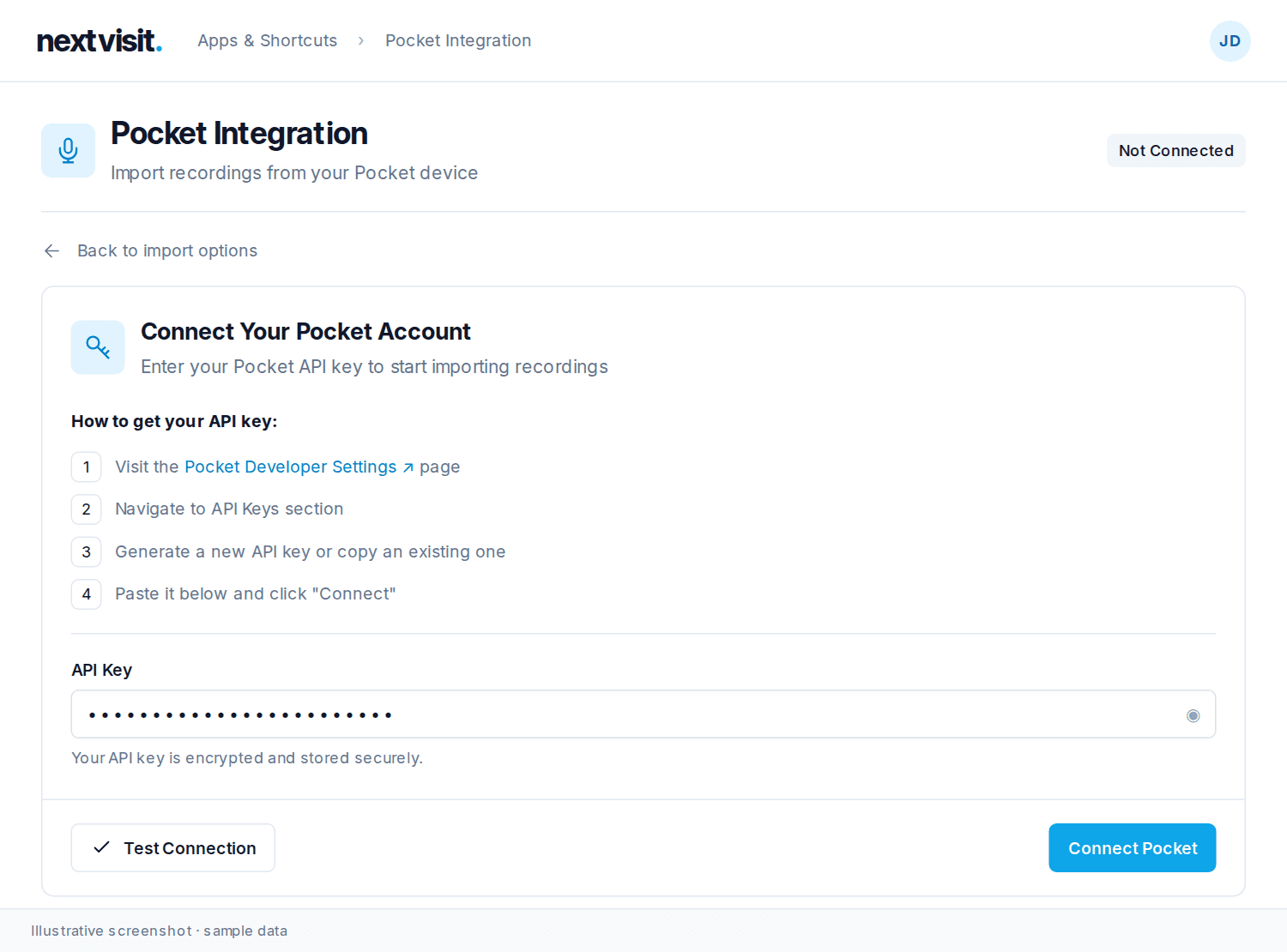
Connect Pocket (cloud)
On Choose Import Method, click Use Cloud Sync.
- Open Pocket Developer Settings.
- Open the API Keys section.
- Generate a key or copy an existing key. Keys start with
pk_. - Paste the key into API Key.
- Click Test Connection to check the key. A successful check shows: Connection successful! Your API key is valid.
- Click Connect Pocket.
The form has an Organization ID (optional) field. Leave it blank. Scheduled imports and personal webhooks work without it. If the API key has organization admin access, Nextvisit sets up organization webhooks. If the automatic lookup fails, open Organization ID (optional). Leave Pocket organization ID (optional) blank for another automatic lookup.
The page heading is Pocket Integration. After you connect Pocket, the badge reads Cloud Connected. The page shows Connected, Last synced, and Refresh. The tabs are Recordings, Automations, USB Import, and Settings.
If your account cannot create notes, the recording panel shows: Your account does not have access to create notes. The automation panel shows: Your account does not have access to create notes or manage automations. The import settings show: Your account does not have access to change import settings.
Recordings
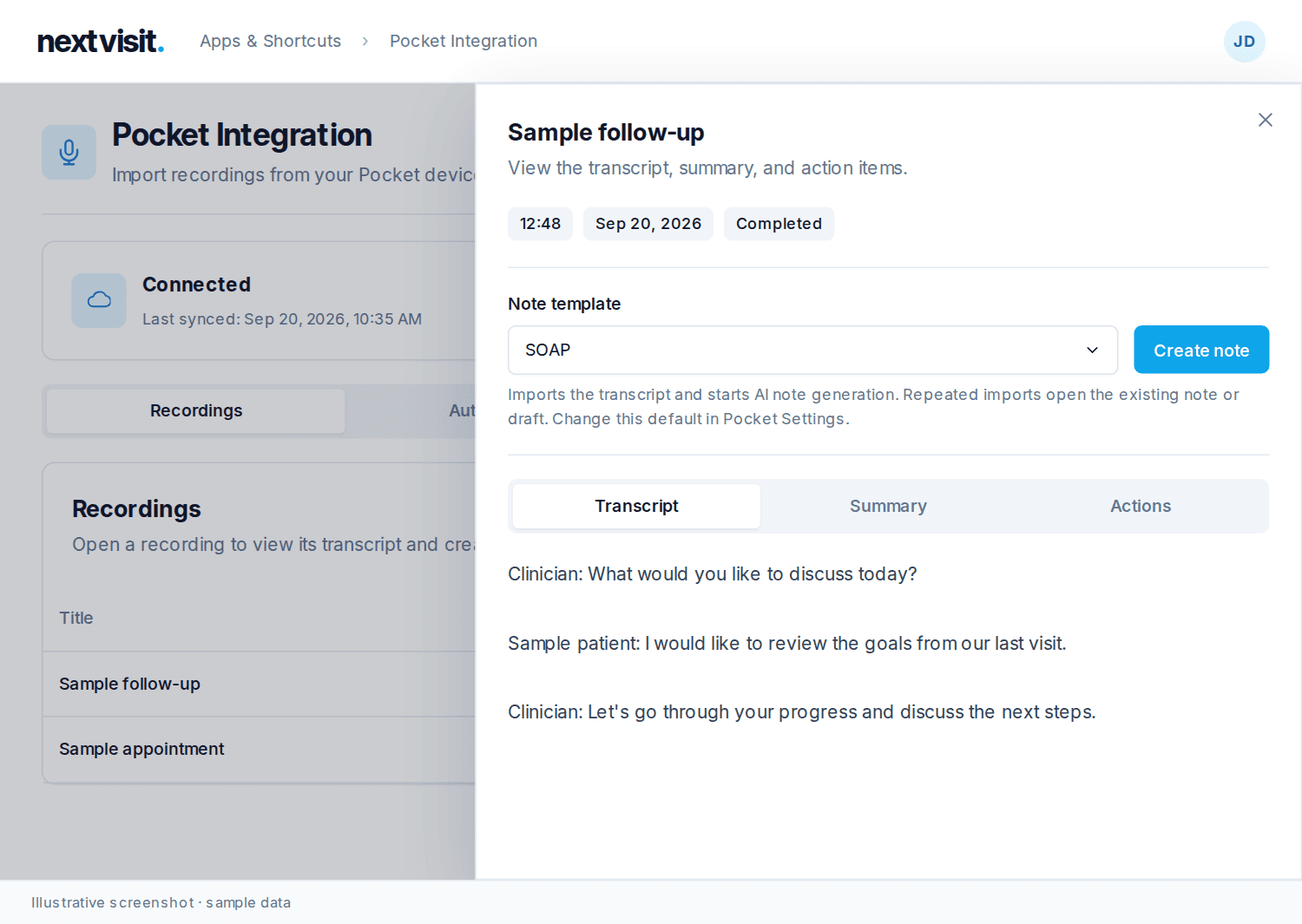
The Recordings tab lists each Pocket cloud recording with its title, duration, status, folder, and date. Open a row to see Transcript, Summary, and Actions.
The folder menu loads after the page opens. If the folders do not load, Retry folders appears. The recording list can still load. Click Refresh to load the current list again.
A recording needs a transcript before you can import it. Choose a Note template. Then click Create note or Import draft. This choice must agree with Import settings in Settings.
- Create note imports the transcript. Then AI starts to generate a note.
- Import draft puts the transcript in an Awaiting Review draft. AI starts to generate a note after you review and submit the draft.
The Note template list shows Nextvisit's active built-in templates.
The note opens as a session. If you want to attach a patient chart, click Link a Patient on the session. If another clinician must own the session, click Change Provider.
An automated import links a patient if the recorded name and date of birth match one patient in the workspace. If the match is uncertain, the session has no patient link. Click Link a Patient on the session to add one. On Sessions, a Pocket import shows a Pocket icon named Pocket.
If you import the same recording again, Nextvisit opens the existing note or draft.
If that note was deleted, Nextvisit shows: The imported note was deleted. Restore it from deleted notes.
Import settings
Settings → Import settings applies to new manual imports and new automations for this connection. The card says: Choose how manual imports and automations handle recordings for this Pocket connection.
After importing a recording:
- Generate notes immediately
- Import drafts for review
Skip non-medical recordings: AI checks each transcript before an automatic import. It skips recordings unrelated to patient care or a visit. You can still import these recordings manually.
Click Save import settings. Confirmation reads: Import settings saved. This default applies to new imports. Existing notes and drafts keep their original import behavior.
Automations
The Automations tab can import every recording or recordings that match your conditions. The card says: Import all recordings or match keywords, weekdays, and recording times.
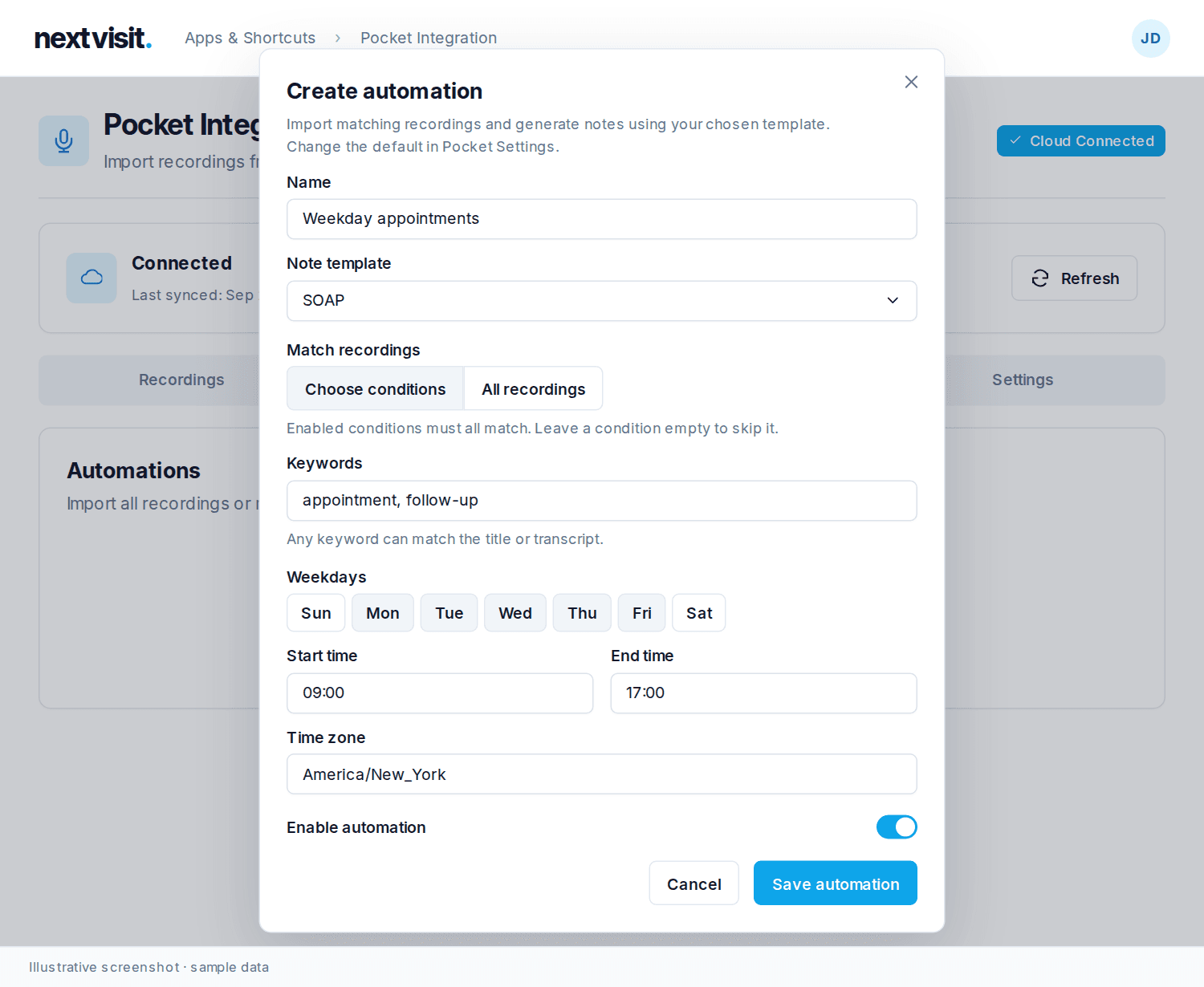
Click Create automation. The dialog title is Create automation. Set a Name, a Default note template, and Enable automation. Then select how to Match recordings:
- All recordings
- Choose conditions: Select keywords, weekdays, and a time range. All active conditions must match. Leave a condition empty to skip it.
The field description reads: AI uses a spoken visit type or infers a template from the transcript. This template is the fallback.
When import settings are Generate notes immediately, the dialog says: Import matching recordings and generate notes with AI-selected patients and templates. When they are Import drafts for review, it says: Import matching recordings as Awaiting Review drafts. AI note generation starts after review.
Say the patient's name and date of birth to find an existing patient. Say the visit type to select a template. AI can also find the visit type in the transcript. If no template fits, AI uses the default template from the first rule that matches. If the patient match is uncertain, the session has no patient link.
Keywords: Separate the keywords with commas (example: appointment, follow-up). One keyword can match the recording title or transcript. Capital letters do not change the match.
Weekdays: If you do not select a day, the rule applies every day.
The Start time and End time fields use the time when you made the recording in the automation's Time zone. An overnight range belongs to its start day.
Example: Set the name to Weekday appointments and the keywords to appointment, follow-up. Select Mon–Fri, 09:00–17:00, America/New_York, and a Default note template.
Active rules check every five minutes. They include existing and future recordings with transcripts. Webhook setup (optional) can start an import when Pocket sends an update. Scheduled checks continue. The first rule that matches supplies the default template. If Nextvisit tries again, it uses the existing note or draft.
The automations link reads Change import settings.
Use the switch to pause an automation (Enabled and Paused). If you delete it, Nextvisit asks: Delete "{name}"? Existing notes and drafts will be kept.
Webhooks (optional)
Settings → Webhook setup (optional). The card says: Import recordings when Pocket sends updates. Scheduled checks continue every five minutes.
The badge reads Connected, Manually configured, Not configured, or Update required.
Your organization ID is optional. Personal webhooks and scheduled imports work without it. If the API key has organization admin access, Nextvisit sets up organization webhooks. If the lookup fails, open Organization ID (optional). Leave Pocket organization ID (optional) blank for another automatic lookup. Click Enable organization webhooks. If Nextvisit already manages the webhook, the button reads Update organization webhooks.
Personal webhook setup is available if Nextvisit does not manage an organization webhook:
- Open Pocket's integrations settings. Create a personal webhook with the Destination URL that Nextvisit shows.
- Subscribe to
transcription.completed,summary.completed, andtranscript.edited. - Paste the signing secret from Pocket into Signing secret. If you saved one before, click Replace signing secret. Click Save signing secret. The saved value is hidden.
Enable an automation in Nextvisit to select the recordings to import. Click Disable webhooks to stop webhook imports. The five-minute check continues. The confirmation reads: Webhook settings saved.
If the badge reads Update required, a managed webhook shows: Update webhooks to use your new destination URL. Click Update organization webhooks. A personal webhook shows: Update the destination URL in Pocket to the URL below.
USB Import
Before you connect to the cloud, click Use USB Import on Choose Import Method. After you connect, open the USB Import tab.
Use Chrome, Edge, or Opera with HTTPS. If the browser cannot open a folder, the button reads Requires Chrome, Edge, or Opera. Brave can show: File System Access is blocked by Brave Shields. Disable Shields for this site or use Chrome/Edge.
- Click Connect Device.
- Select the Pocket drive root or the RECORD folder.
- Select the files. Date folders have names such as
YYYY-MM-DD. - Click Upload with the selected file count. Set Title and Template for each file. Patient and Context are optional. Template lists built-in and custom templates.
- Click Upload again. Nextvisit transcribes the files as described in Upload audio. After all selected files finish, Sessions opens.
If the device is empty, make sure that it has recordings in the RECORD folder.
Disconnect
Settings → Disconnect Pocket. Confirm: Disconnect your Pocket account? Automations will stop importing recordings.
Existing notes and drafts stay. To start cloud sync again, connect with an API key. If you import the same recording again, Nextvisit opens the existing note or draft.
Open Pocket in Connection Settings opens Pocket's API key page.
If something looks wrong
- Unable to load folders. Try again. — Retry folders
- Unable to load recordings. Try again. — Try again or Refresh
- Pocket reported a transcription error. Refresh after retrying transcription in Pocket.
- Pocket reported a summary error. Refresh after retrying the summary in Pocket.
- A transcript is required to import a recording.
- This recording does not have a transcript ready to import.
- Authentication failed. Please reconnect your Pocket account. / Reconnect your Pocket account to import recordings.
- Your Pocket API key does not have permission to access this resource. / Your Pocket API key does not have access to this recording.
- Pocket is receiving too many requests. Please try again shortly. / Pocket is busy. Try importing again shortly.
- Pocket note preparation failed. Check your connection and templates. The next sync will retry.
- Pocket automation failed. Check your connection and note templates. The next sync will retry.
- This API key cannot manage Pocket organization webhooks. Use an organization API key with permission to manage webhooks.
- Pocket could not find this organization or webhook. Check the organization ID.
- Pocket webhook setup failed. Please try again. Scheduled imports remain available.
- Your account does not have access to change webhook settings.
- Automation banner examples: Pocket is busy. The next sync will retry. / Pocket access failed. Check your API key and its permissions.
Was this article helpful?
Still stuck? Our team answers in the messenger.