Chart organization
Upload Patient Chart Documents
Upload a PDF to a patient chart. Add a chart document to a session or note.
You can upload a PDF from a patient chart or during a session. In the recorder, select a patient before you upload a file.
Upload options
From the patient chart:
- Open the patient chart.
- Open Documents.
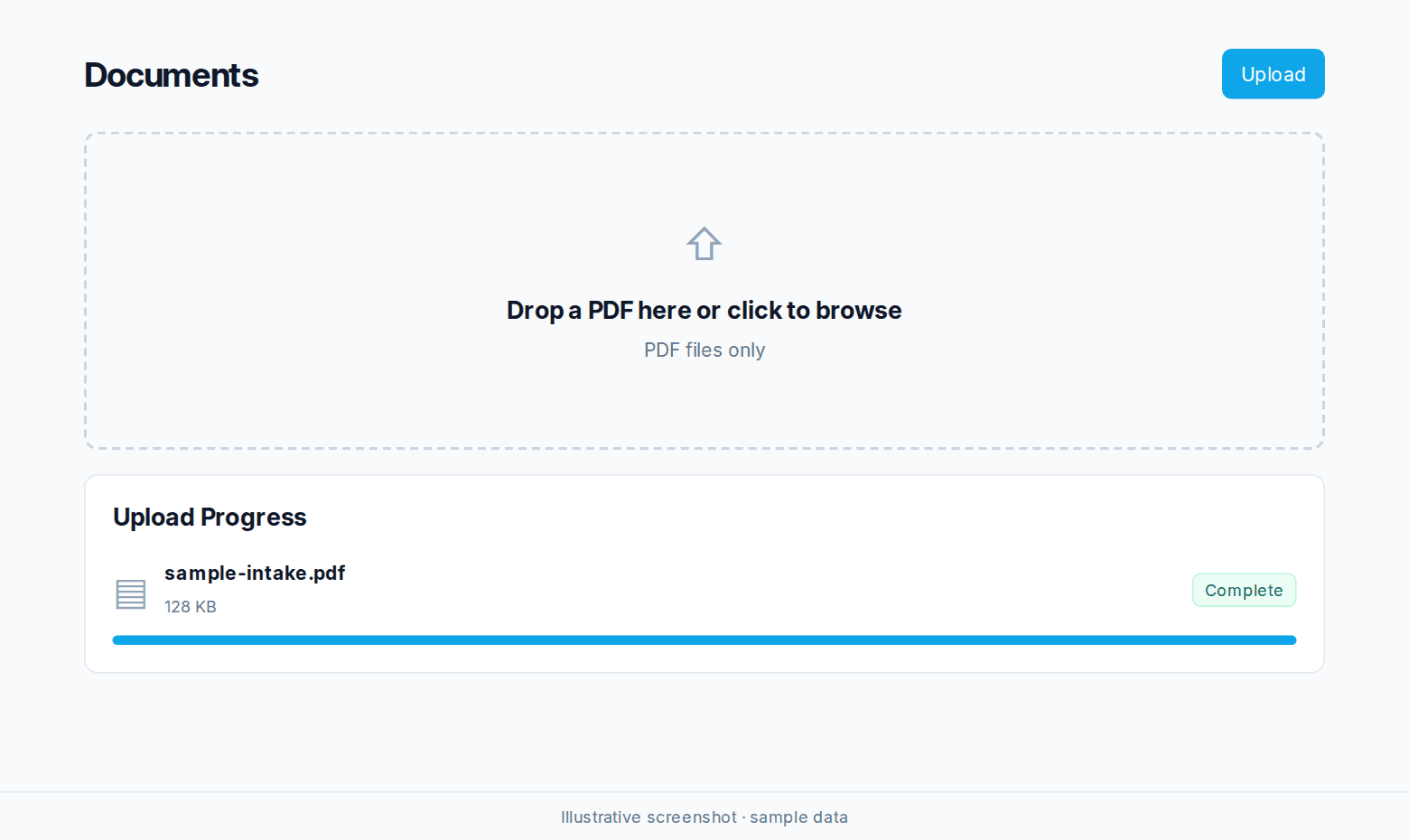
- Click Upload.
- Drop a PDF in the upload area or click to select it.
During a session:
- Link a patient to the session.
- On session setup, select existing chart files under Documents if you want to use them.
- During the session, open Files or press F.
- Drop a PDF in the upload area.
Use existing documents
When you write a note or start a session, you can select documents from the patient chart. Link the patient to access these files.
You can upload lab results, intake forms, prior records, imaging reports, and reports from specialists.
File requirements and credits
Upload PDF files. Nextvisit uses credits to process documents. The credit terms depend on your clinic's agreement.
See Usage and credits for your remaining credits.
Was this article helpful?
Still stuck? Our team answers in the messenger.