Account and notifications
Display and layout
Set the theme, sidebar layout, patient chart navigation, and the dashboard view.
Open Settings → Display. The heading is Display. The text says: Customize how the application looks and feels.
The sections are Theme, Patient Chart, and Macros.
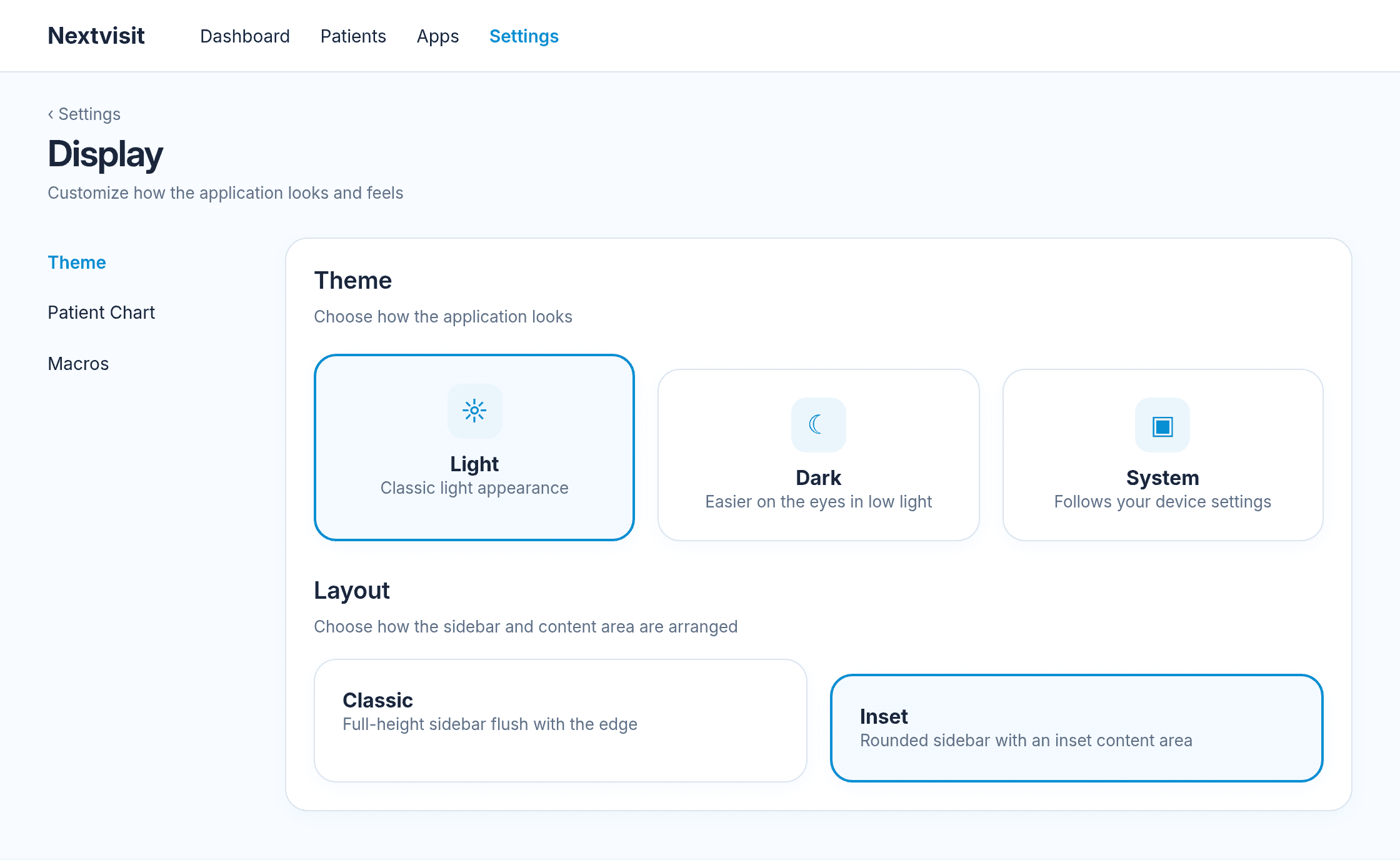
Theme
Theme has three choices:
- Light: Classic light appearance
- Dark: Easier on the eyes in low light
- System: Follows your device settings
A saved theme shows Theme updated.
Layout
Under Layout, the text says: Choose how the sidebar and content area are arranged.
- Classic: Full-height sidebar flush with the edge
- Inset: Rounded sidebar with an inset content area
A saved layout shows Layout updated.
Patient chart
Patient Chart is titled Patient chart navigation. The text says: Choose how you move between sections of a patient chart.
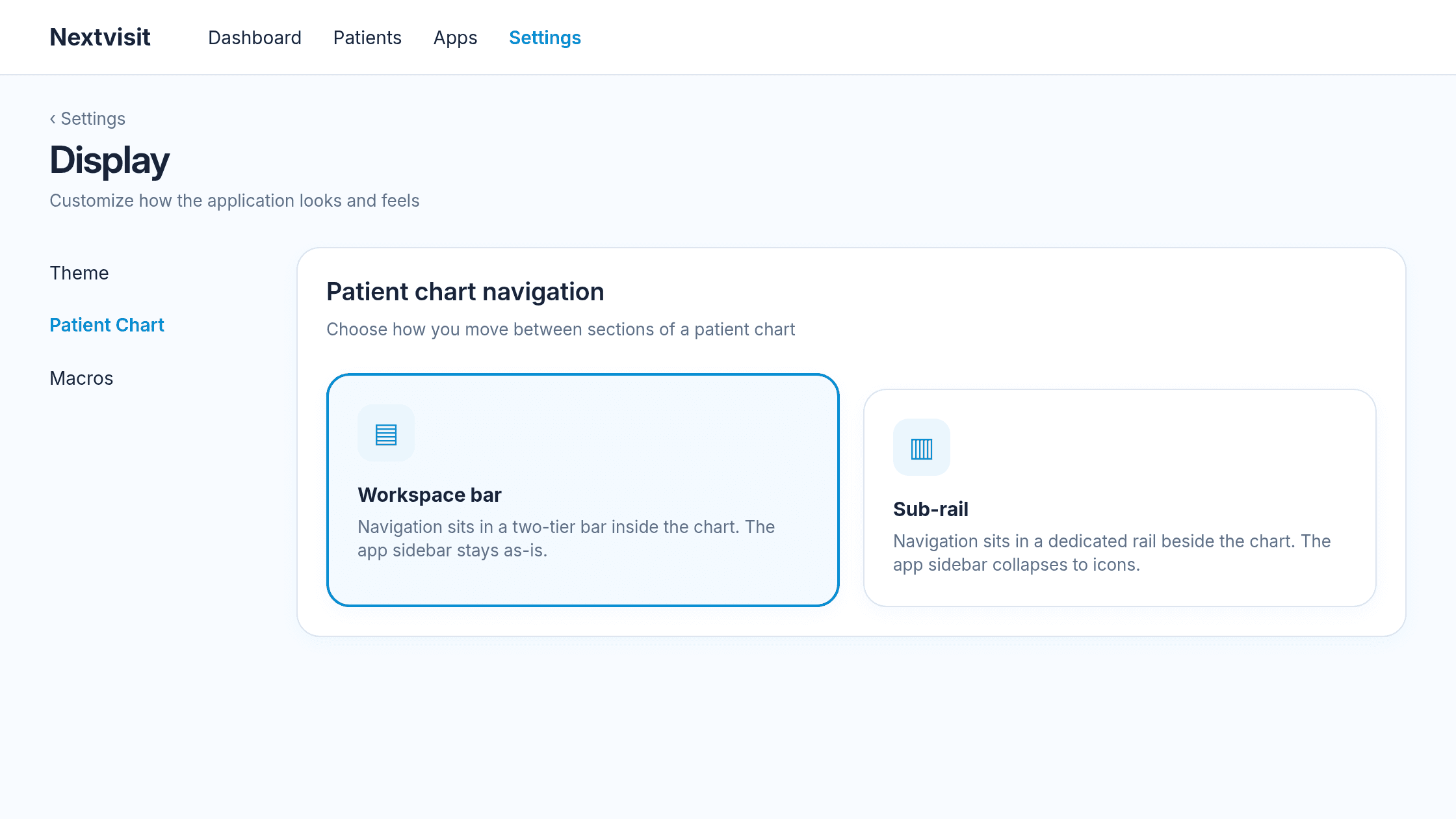
- Workspace bar: Navigation sits in a two-tier bar inside the chart. The app sidebar stays as-is.
- Sub-rail: Navigation sits in a dedicated rail beside the chart. The app sidebar collapses to icons.
A saved choice shows Patient chart navigation updated.
Macros
Macros explains the slash shortcut. The text says: Type / followed by a trigger (e.g. /mse) in any supported field to expand a snippet.
Manage macros opens the macros list. See Macros.
Slash (/) shortcut turns the slash menu on or off in the rich text editor and supported text areas. The description reads: Enables the slash menu in the rich text editor and supported textareas.
Dashboard view
The dashboard has its own layout, separate from Display.
The default dashboard greets you by your first name and shows Start recording, Write a note, and Upload audio. Click Classic view to switch to the widget layout. See Your dashboard.
Was this article helpful?
Still stuck? Our team answers in the messenger.