Product overview
Your dashboard
Find a patient, review recent sessions, and start a visit from the dashboard.
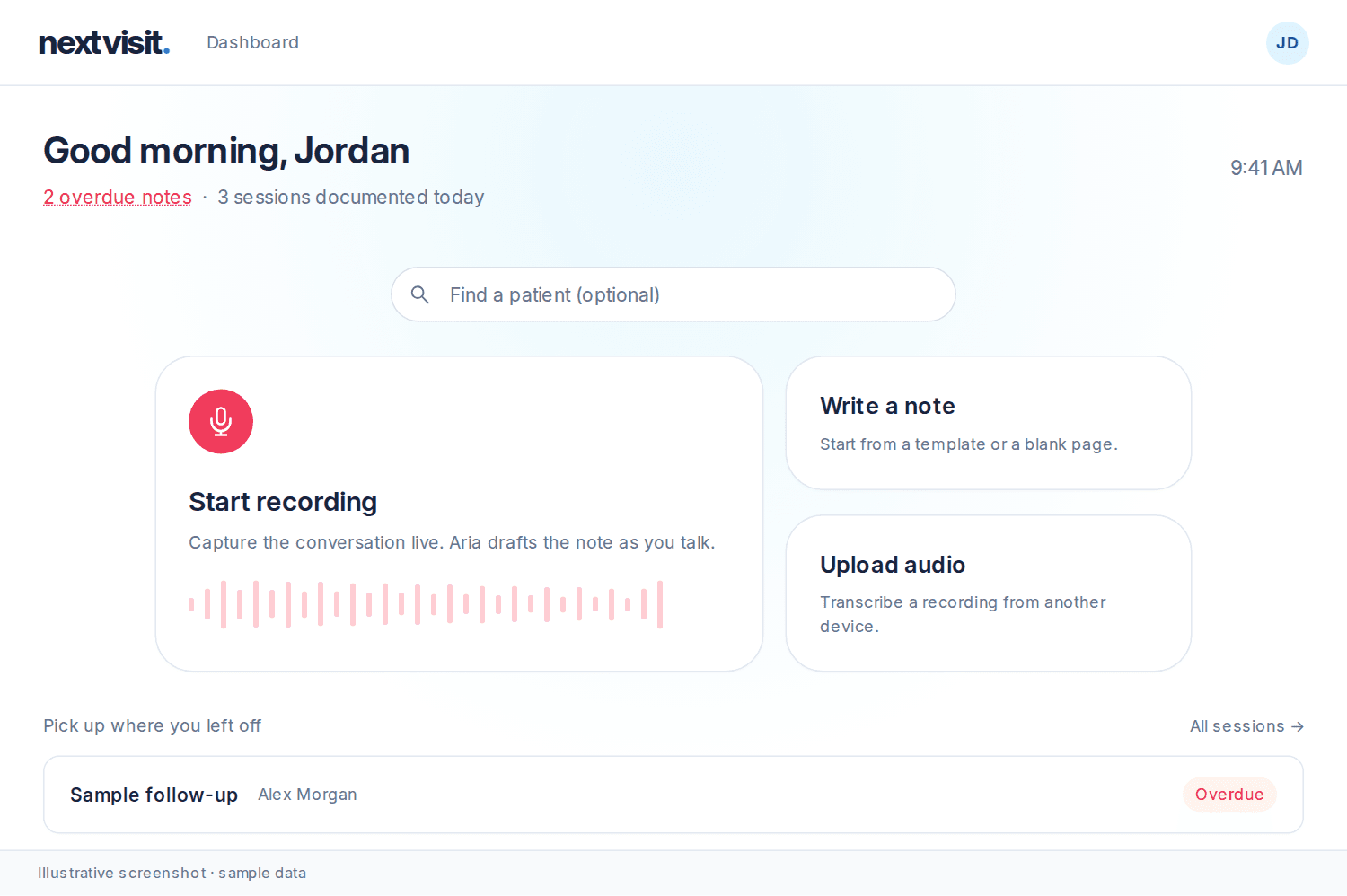
Open Dashboard. The heading shows your first name.
If unsigned notes need review, the dashboard shows overdue notes, aging, or notes to review. A note is overdue after 48 hours and aging after 24 hours. Click overdue notes to open Sessions with Status Overdue. Click aging or notes to review to open Sessions.
The Pick up where you left off section lists recent sessions. Unsigned notes can show Overdue or Aging. Click All sessions to open the full list. Use the Overdue status filter to find overdue sessions.
Select a patient in Find a patient (optional) to see that patient's visit information. If the search says No patients found, click Create Patient. This opens Confirm New Patient. See Create a patient from search.
The Last time card shows the last note, homework, and chart details. If there is no prior note, it shows First session. If Nextvisit still processes the note, it shows Last visit is still writing. Click Open last note to open the session. If the last visit is old, the card shows It's been a while. and does not show homework.
Click Start recording, Write a note, or Upload audio to start a visit. You can select a patient first or start without one.
Click Classic view to use the widget layout.
Was this article helpful?
Still stuck? Our team answers in the messenger.