Account and notifications
Managing Your User Profile
Access and customize your account settings, security options, and session management.
Accessing your profile
-
Click your profile icon in the bottom left corner of the screen
-
Select “Profile” from the dropdown menu
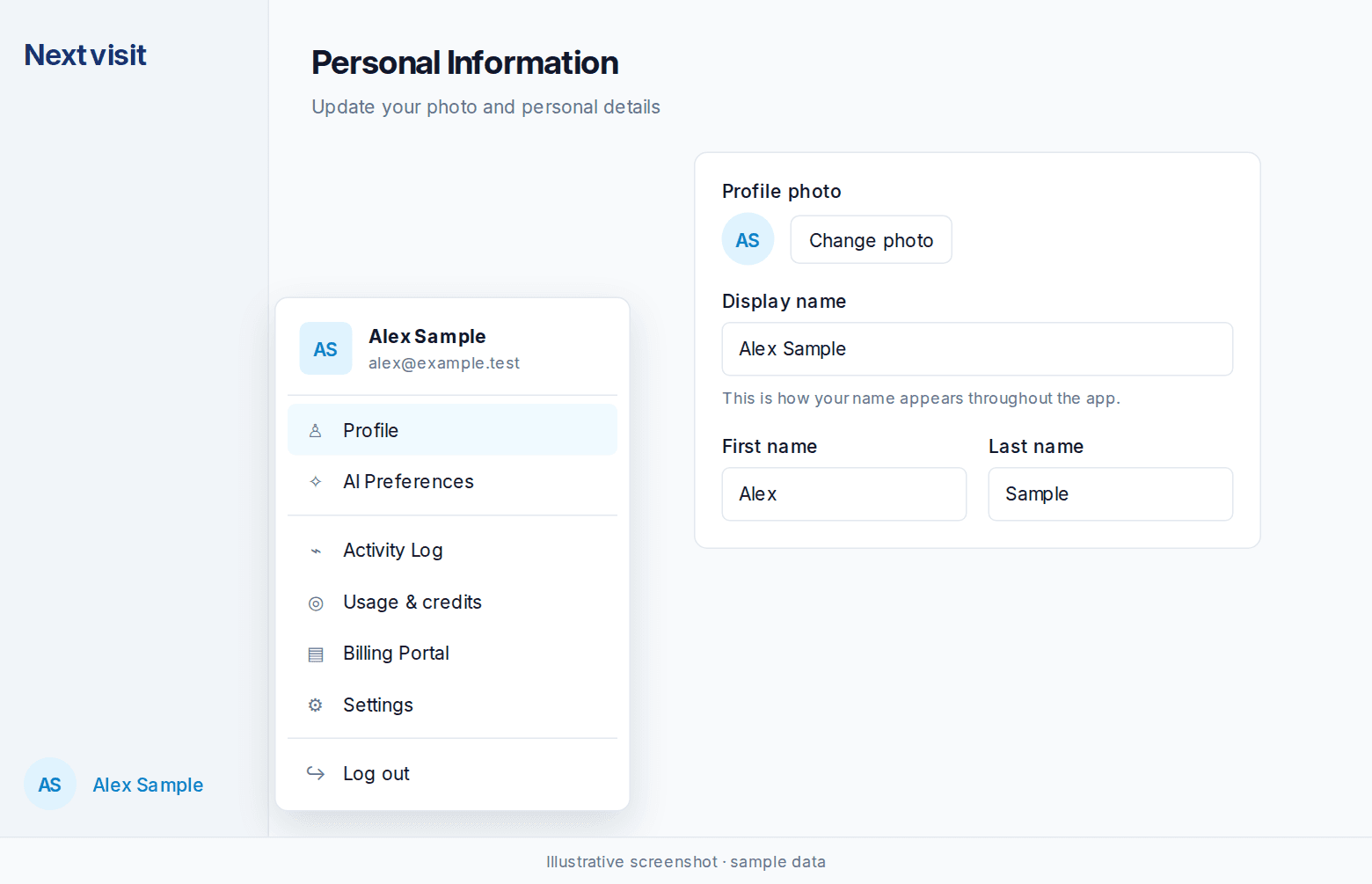
Profile customization
Profile image: Upload a profile picture. It appears throughout the application while you’re logged in.
Display name: Set how your name appears to other users in shared documents, progress notes, and collaboration features.
Account integration
If you signed in with Google or Apple, Profile shows Signed in with and a Google or Apple badge.
Security settings
Password: Update your account password at any time.
Two-factor authentication (2FA): Enable 2FA to add an extra layer of security to your account.
Session management
Active sessions: View all devices and browsers where you’re currently logged in, including device type, browser, and last activity.
Remote logout: Click “Log out other browser sessions” to immediately sign out from all other devices. Useful if you’ve used a shared computer or want to confirm no sessions are open elsewhere.
Was this article helpful?
Still stuck? Our team answers in the messenger.