Note editing and review
Restore Prior Note Versions
Open version history on an unsigned note, preview a prior save, and restore it.
Nextvisit saves version history automatically.
On an unsigned note, click Change History (clock-arrow icon). The Version History panel opens. Preview a prior save, then click Restore Version.
A signed note shows Note Signed. Change History and Edit are hidden. Click Unsign, then restore. Submitted insurance claims that are not drafts hide Unsign. The product shows: Cannot unsign when submitted claims are present.
Accessing version history
-
Open the progress note you want to review
-
Click Change History
-
The Version History panel opens
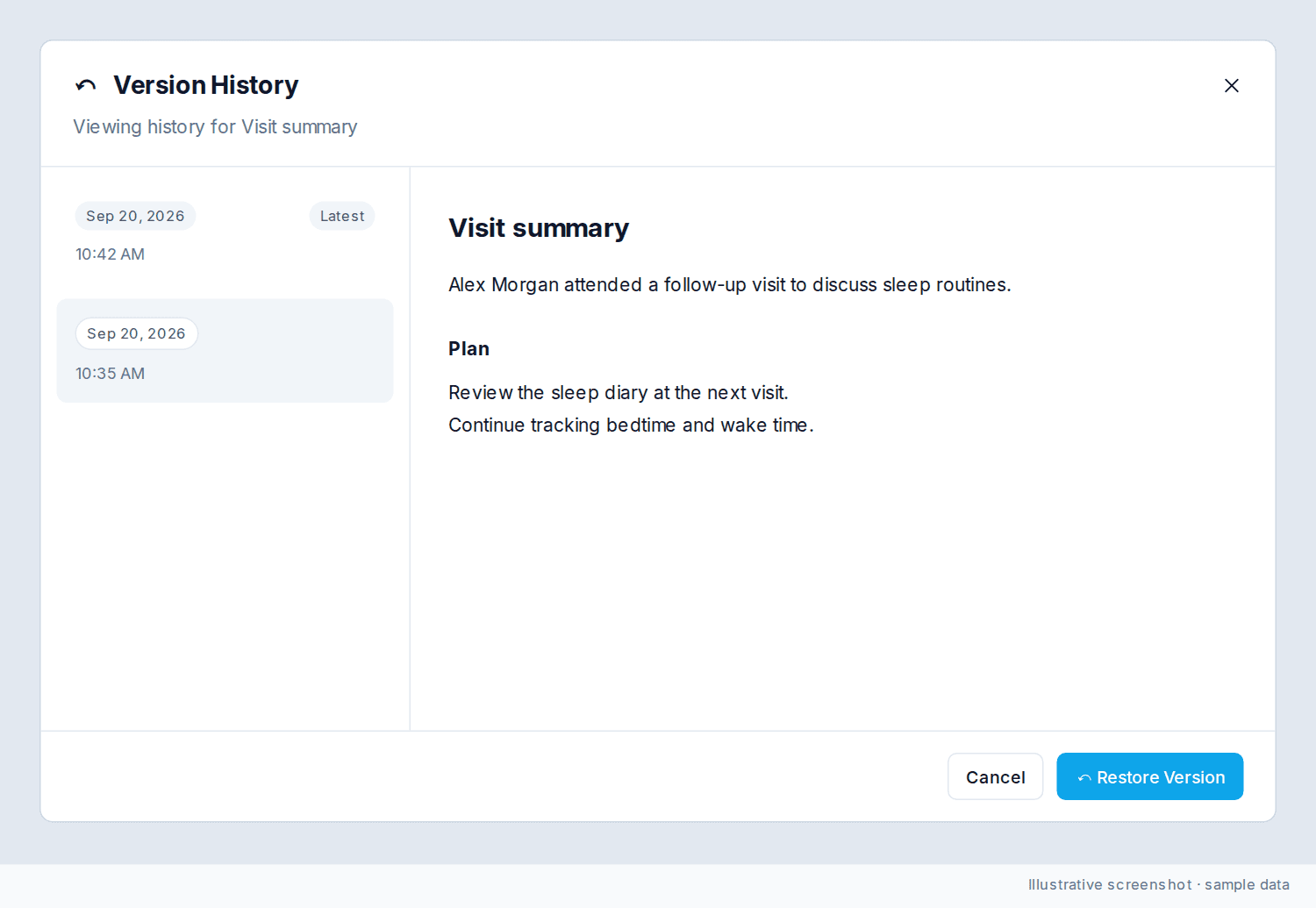
What the panel shows
-
Each version is listed with the date and exact time it was saved
-
The most recent version is marked "Latest"
-
Click any version to preview its content
-
Restore Version applies to the version you selected
Restoring a previous version
-
Browse the versions listed in the panel
-
Click a version to preview it
-
Click "Restore Version" at the bottom of the panel
-
Confirm, or click "Cancel" to go back
Restoring replaces the current note text. The restored version becomes the new latest. All prior versions stay in the list.
Was this article helpful?
Still stuck? Our team answers in the messenger.