AI preferences
Customizing Your AI Settings
Configure your AI preferences to match your documentation style and workflow.
These preferences are per-account, not workspace-wide.
Accessing your AI settings
Two paths:
-
Click your profile in the bottom left sidebar, then select AI Preferences
-
Go to Settings, then AI Preferences
Settings are configured per user. There is no way to set global preferences for all users in your workspace.
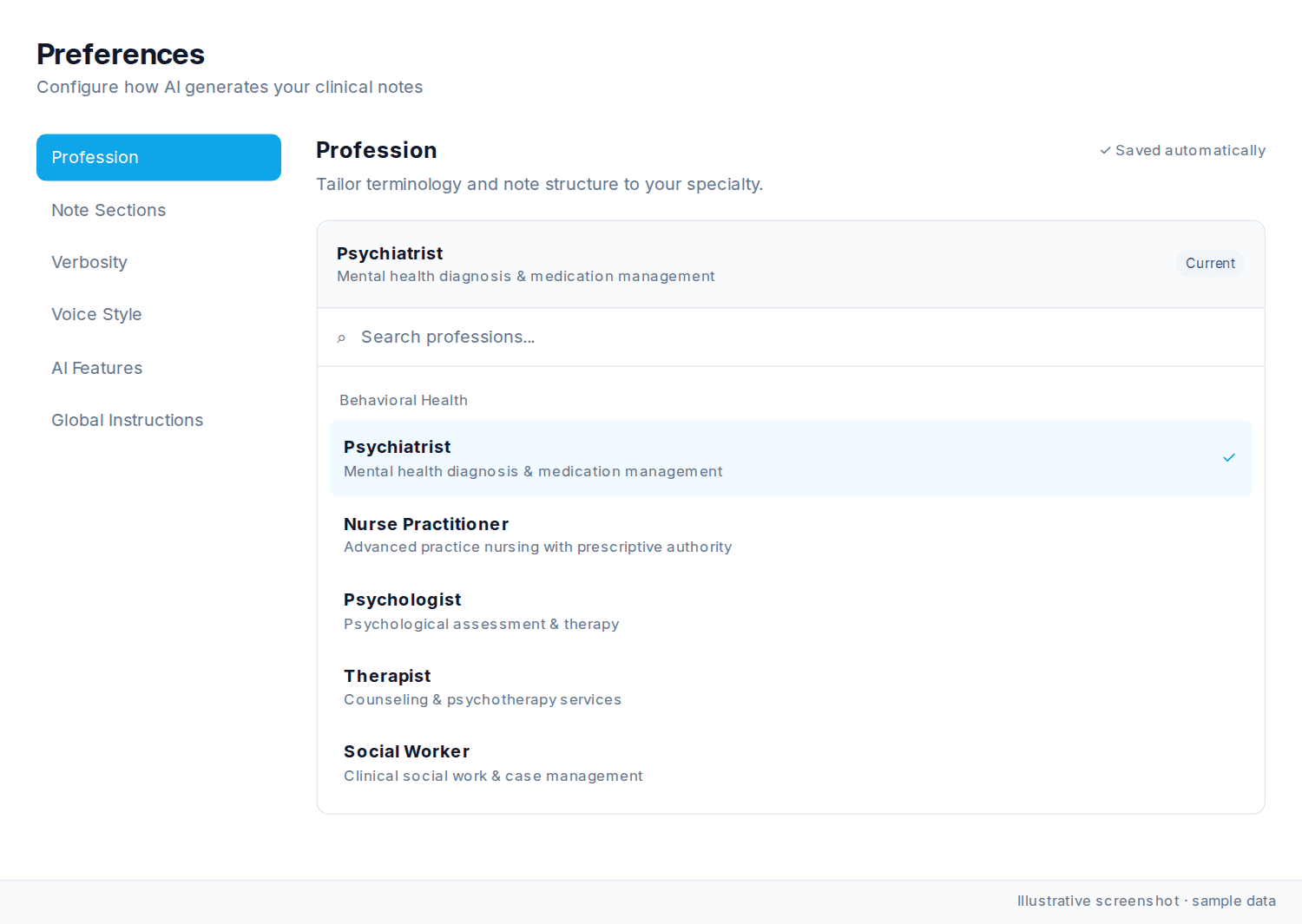
Healthcare profession
Select your profession from the searchable list. That sets terminology and documentation conventions for the AI.
Note components
Choose which sections appear in your progress notes. Toggle on or off:
-
Patient history: Adds chart history to the note
-
Mental status exam: Adds psychological and cognitive status to generated notes, including intake and custom templates
-
Review of systems: Adds body-system review
-
Therapeutic intervention: Adds the treatment plan details
Enabling more sections produces broader documentation. Fewer sections allow for more detail in each included area.
Preferences
Control which AI-powered automations apply to your workflow. These labels are on the AI Features tab:
-
Auto-update Medications: Automatically update patient medications from session details.
-
Diagnosis Extraction: Analyze each session to extract diagnoses from the transcript and context.
-
Auto-apply Chart Changes: Skip the review step: medication and diagnosis changes from your sessions are applied to the patient chart automatically.
-
Review Before Processing: Hold each session before any processing so you can review and edit the transcript and context first, then send it for processing.
-
Draft Until Reviewed: Keep each session in a draft state until you review its proposed medication and diagnosis changes.
-
Session Context: Reference prior sessions for continuity in patient care.
-
Patient Summary: Generate complexity scores and treatment summaries.
-
Transcription Enhancements: Clean up and clarify session transcripts before notes are generated.
Model settings
-
Default model: Your preferred prompt type (e.g., “SOAP Note (Standard)”)
-
Model instructions: Extra rules such as “Add a telehealth consent notice to the end of each note” or “Include vitals if mentioned.” The system learns from your edits over time.
Saving your changes
Profession, Note Sections, Verbosity, Voice Style, and AI Features save automatically. In Global Instructions, click Save Changes to save the note format and custom instructions. Your settings stay active until you change them.
Was this article helpful?
Still stuck? Our team answers in the messenger.