Apps
Forms
Turn on Forms, build a form, send it, and review what comes back.
Forms is a clinic app. A clinic owner or an admin turns it on. A clinician builds a form, publishes it, and sends it by link, email, QR code, or an office kiosk. The patient fills it on any device. No Nextvisit account is required. The submission is scored, runs the form’s automations, and shows up on the patient chart, on the session, in notifications, and in the form’s review queue.
Turn Forms on
Open Apps & Shortcuts, then Apps. The page heading is Apps & Integrations. Find Forms under Official Apps. The card says: Build intake and assessment forms, send patient fill links, and review submissions with automations.
A clinic owner or an admin clicks Activate. The card shows Enabled. Open Forms opens the form list. Forms also appears under Apps in the sidebar.
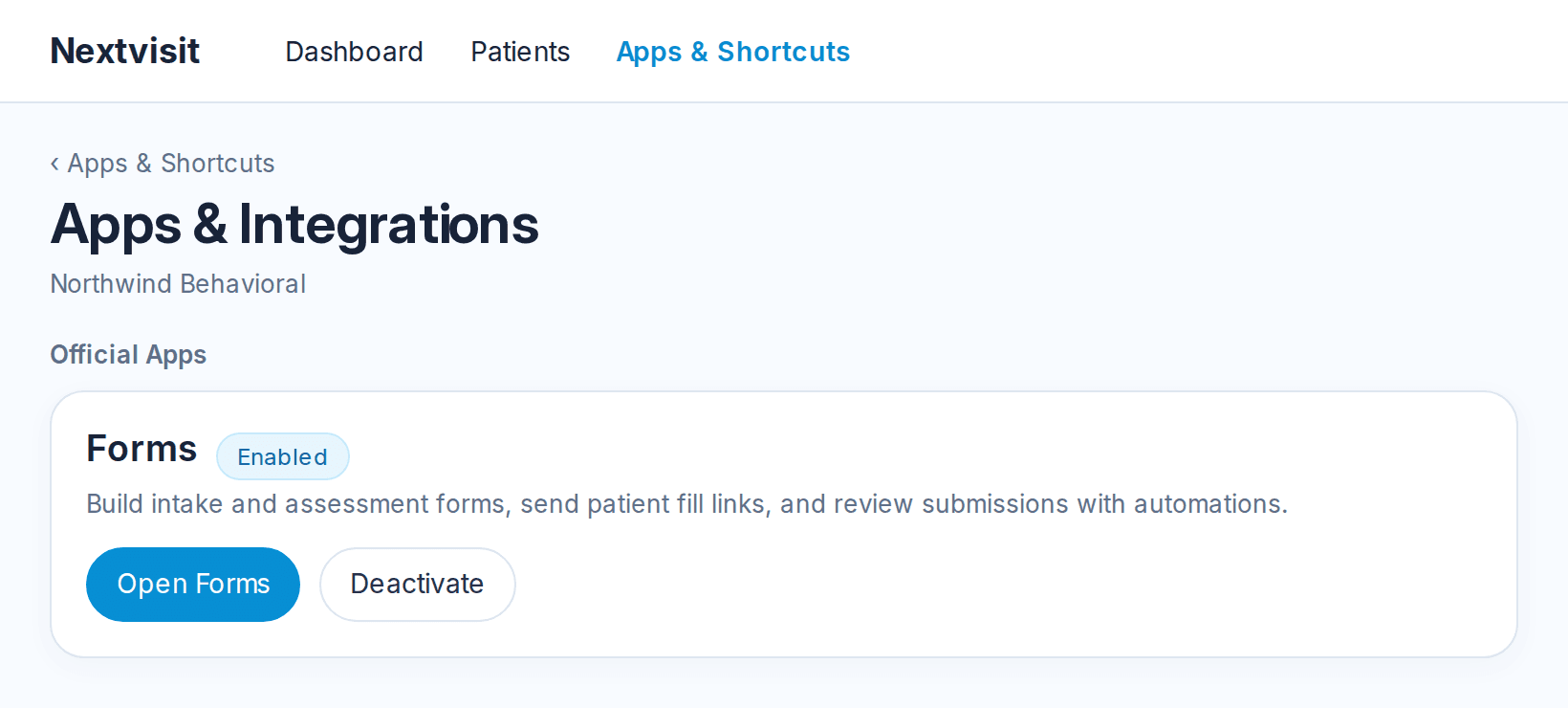
Click Deactivate to turn the app off for the clinic.
The form list
Open Apps → Forms. The heading is Forms. The line under it counts forms, published forms, and submissions.
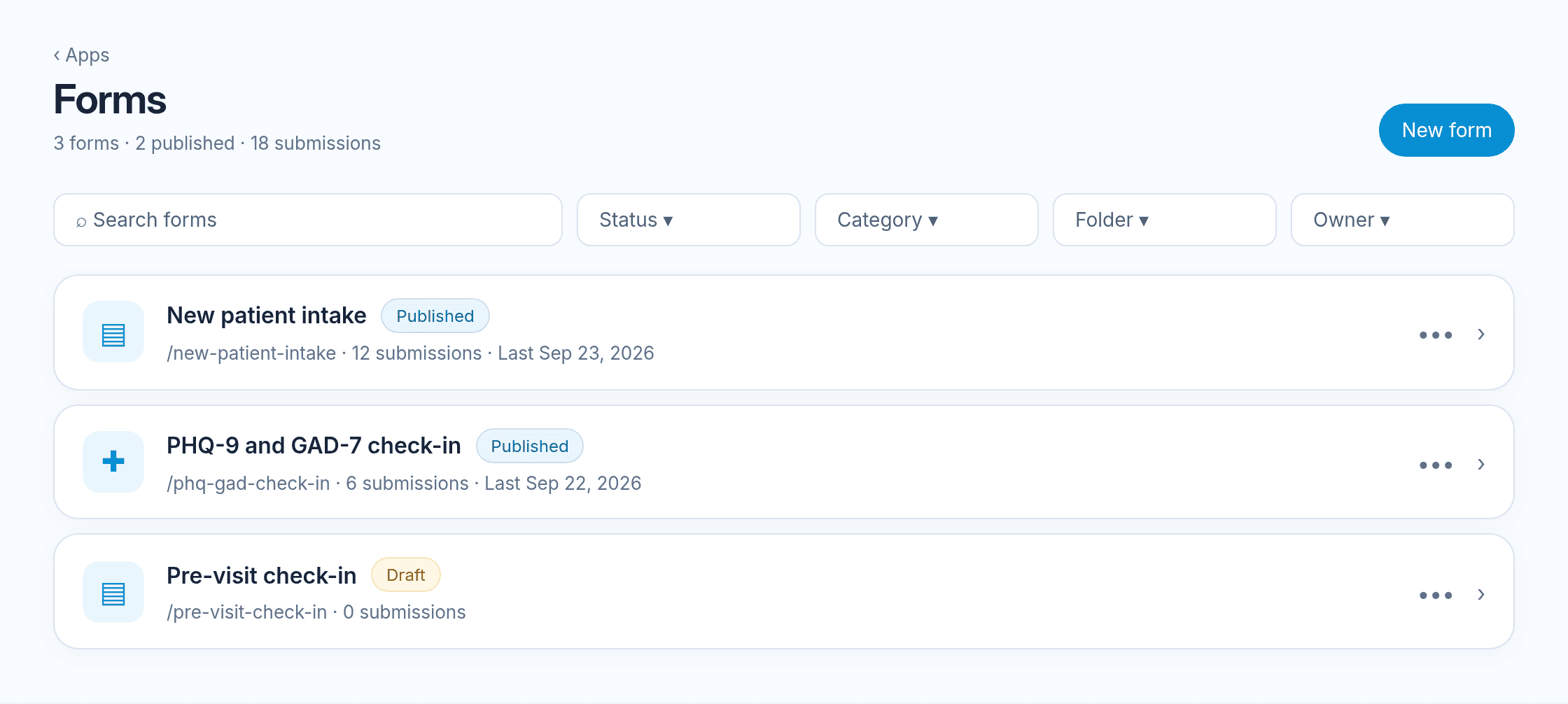
Search the list, or filter by Status, Category, Folder, and Owner. Status values are Draft, Published, and Archived.
Each row shows the name, status, slug, and submission count, plus the last submission date and folder when those exist. Open a row to build it. More actions includes Build, Share, Submissions, Analytics, Automations, Duplicate, Archive, and Delete.
- Draft: Staff with access can open the builder. A public link is not available.
- Published: Patients can fill the current version.
- Archived: The form leaves the active list. Existing submissions stay.
Create a form
Click New form. The menu More ways to create a form lists Blank form and From a template.
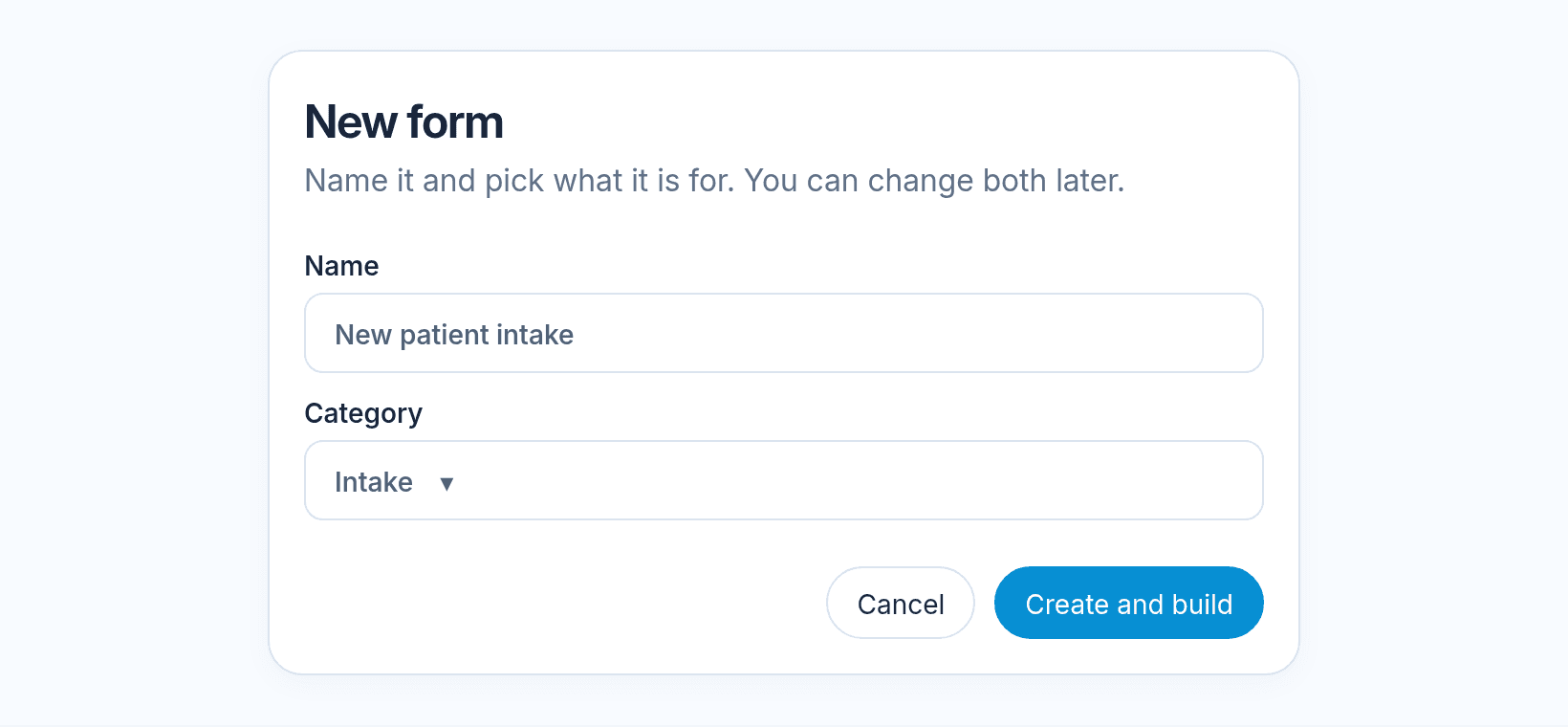
Blank form opens New form. The dialog says: Name it and pick what it is for. You can change both later. The fields are Name and Category. Confirm with Create and build. Categories are Intake, Screener, Consent, Survey, Inquiry, and Custom.
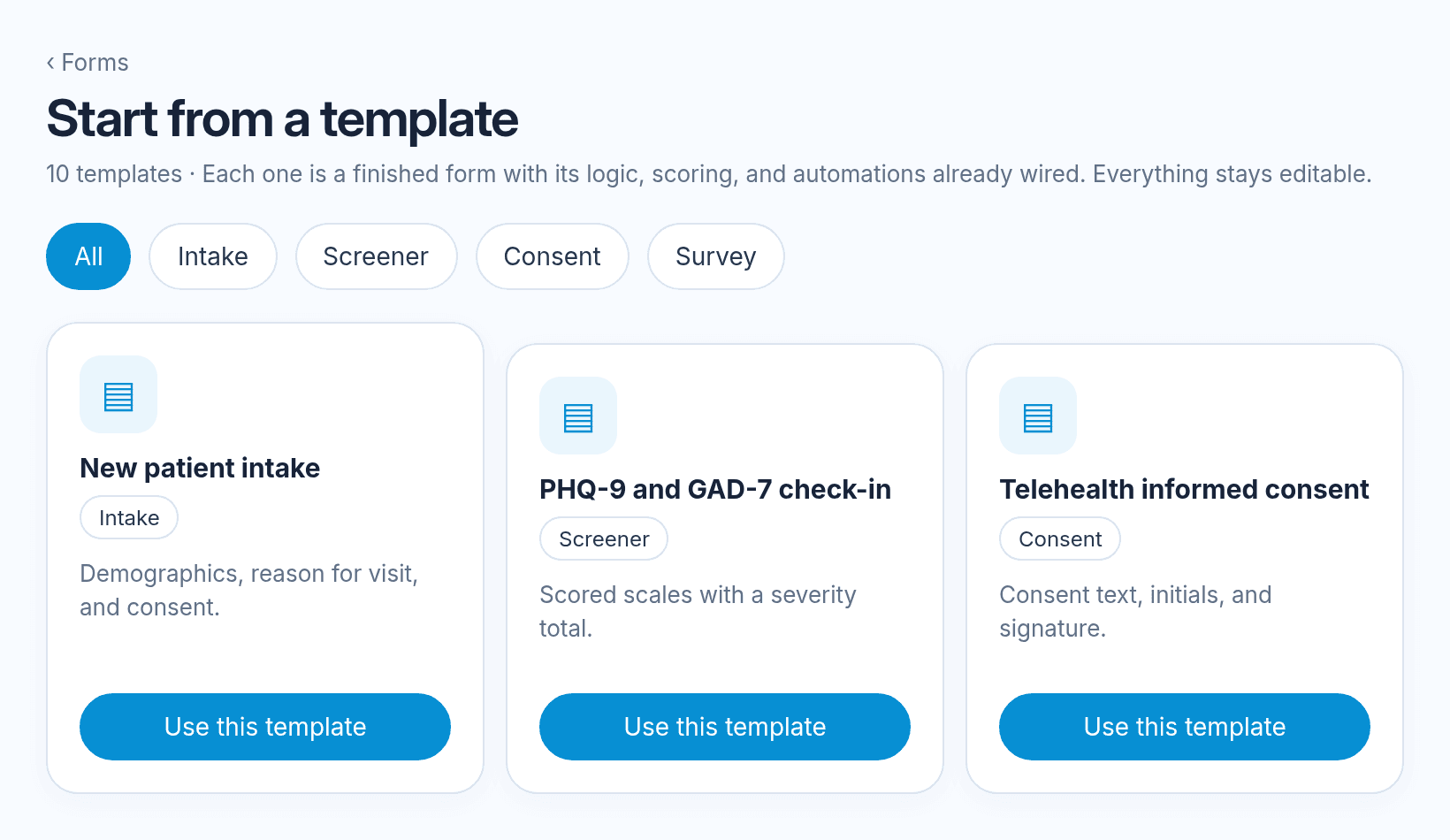
From a template opens Start from a template.
Templates:
- New patient intake
- PHQ-9 and GAD-7 check-in
- Telehealth informed consent
- Release of information
- Pre-visit check-in
- Medication and allergy update
- Post-visit satisfaction survey
- New client inquiry
- Controlled substance agreement
- ADHD symptom report (SNAP-IV)
Pick a template to copy it into the clinic. You can edit every field after that.
Builder
The builder is three columns: the block list, the page canvas, and the inspector.
The name field is labeled Form name.
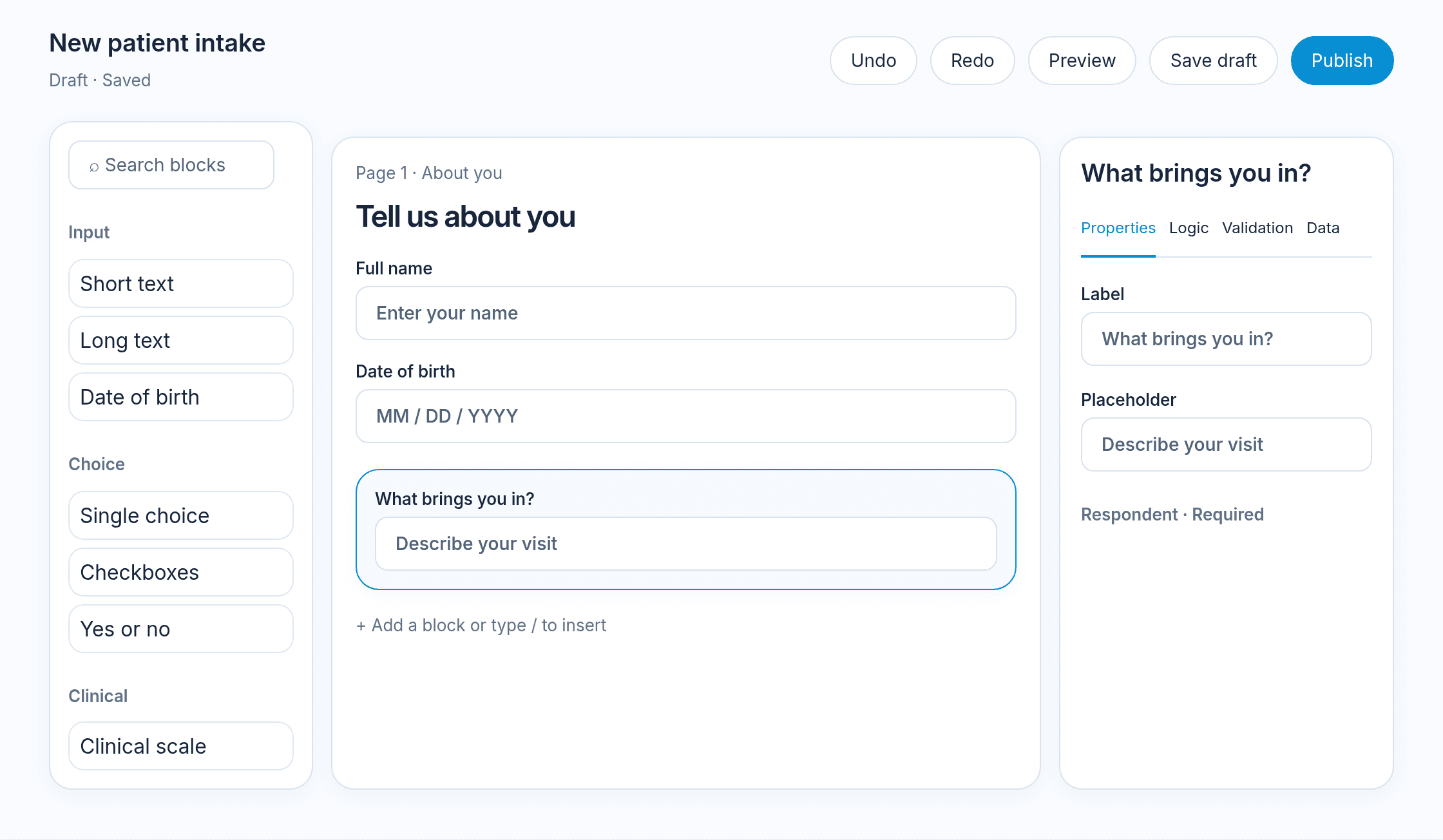
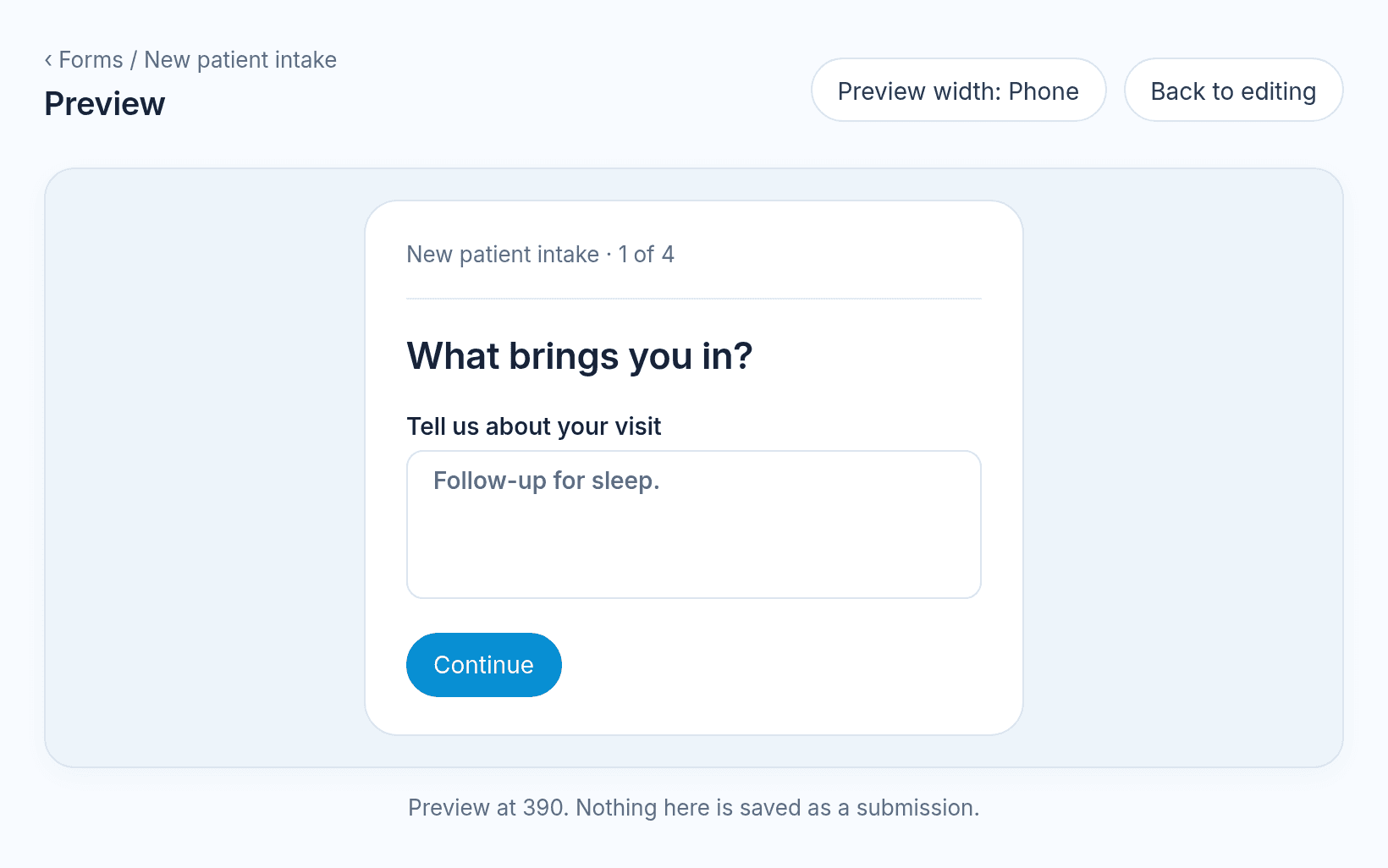
- Preview shows the form as a patient would see it. The preview says: Nothing here is saved as a submission. Preview width switches among Phone, Tablet, and Desktop. Back to editing returns to the canvas.
- Save draft writes the current draft. The header shows Saving…, Unsaved changes, Saved with the time, or Up to date.
- Publish publishes a draft. On a form that is already published, the button reads Publish changes.
Undo and redo are in the header. On a narrow screen, Show blocks and Open the inspector open those panels.
Pages
A form is one or more pages. Each page has a title. Drag a block from the list onto a page, or type / on the canvas to insert a block. Drag a block to reorder it. Select a block to edit it in the inspector.
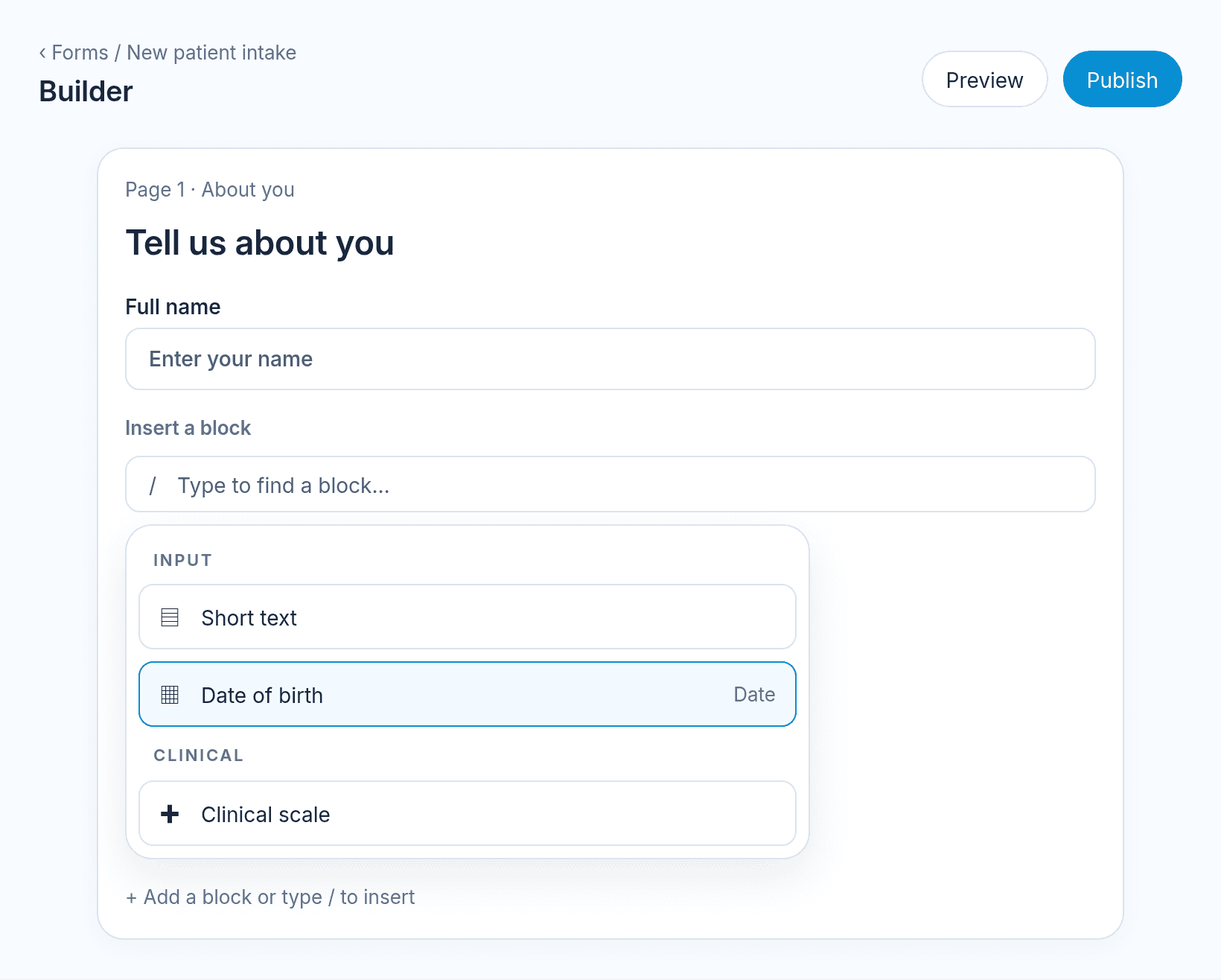
The block list has Search blocks. All blocks, Staff only, and Respondent only filter the canvas.
Blocks
Blocks are grouped:
Input: Short text, Long text, Email, Phone, Number, Website, Date, Time, Date and time, Date of birth.
Choice: Dropdown, Multi select, Single choice, Checkboxes, Yes or no, Rating, Net promoter score, Slider, Likert scale, Matrix.
Identity: Full name, Address, Emergency contact.
Consent: Consent, Signature, Initials.
Clinical: Clinical scale, Medication list, Allergy list, Insurance card, Patient lookup.
Media: File upload, Photo upload.
Layout: Heading, Paragraph, Callout, Divider, Image.
Advanced: Hidden field, Calculated value, Repeating group, Section.
A Clinical scale uses a scale already in the clinic, such as PHQ-9. The score is calculated the same way as Scales and exams. See Scales and exams.
A Likert scale uses anchors. The inspector says: Anchors run left to right. A score feeds calculations that read this block. The field is Anchors. Add anchor adds one. On a wide screen the anchors sit in one row. With more than five anchors, that row starts on a wider window. On a narrow screen each anchor is its own row.
Consent stores the text the patient agreed to. Signature and Initials are drawn on the page. Repeating group lets the patient add more than one row.
On the Data tab, Audience is Respondent or Staff. The hint says: A staff block never renders for a respondent. Staff fields are filled after submission, including by Fill staff fields with AI.
Inspector
Select a block. The inspector tabs are Properties, Logic, Validation, and Data.
With no block selected, the inspector tabs are Details, Pages, Settings, Protection, Theme, and Share.
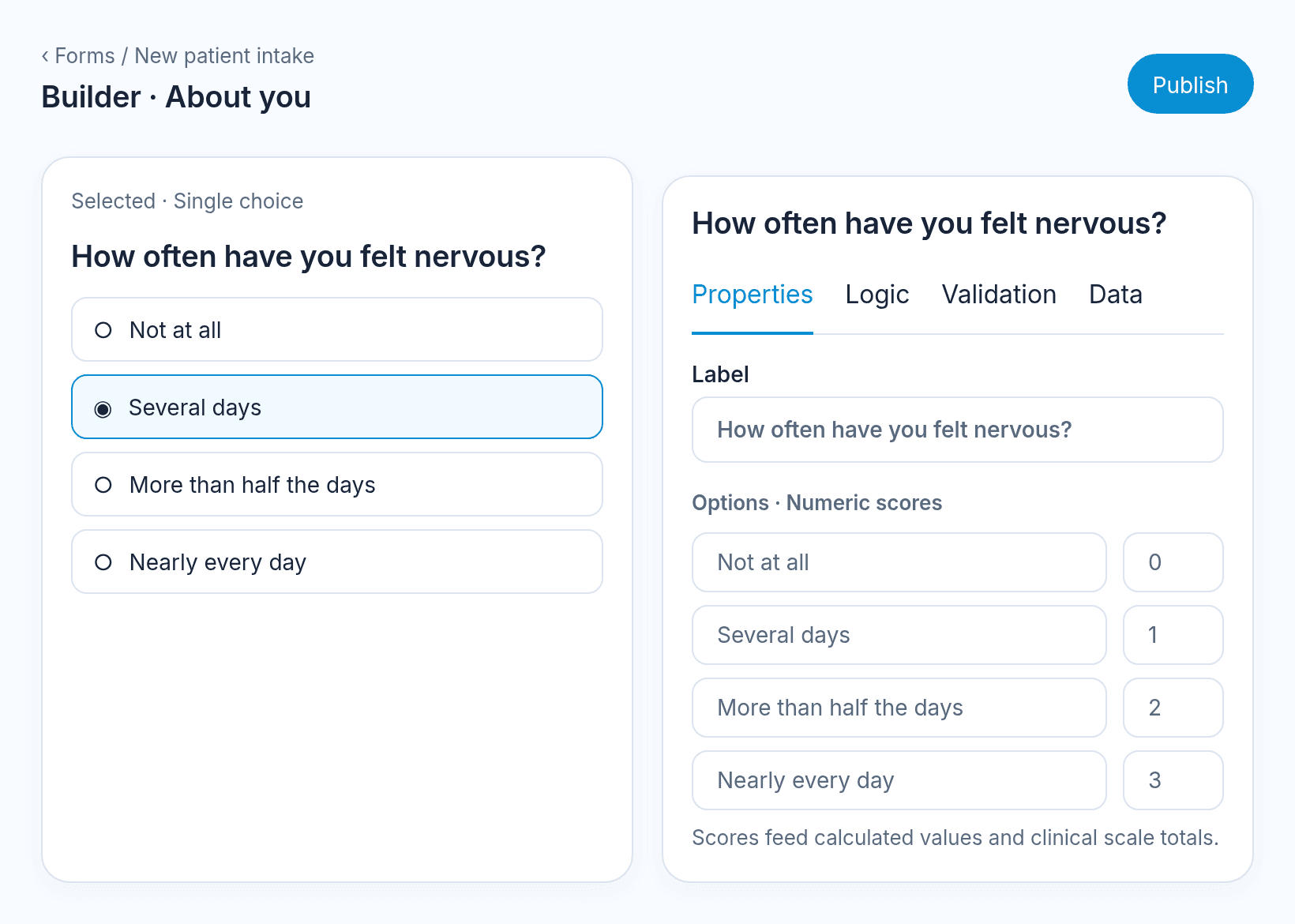
Properties holds the label, placeholder, and options. A choice option can carry a numeric score.
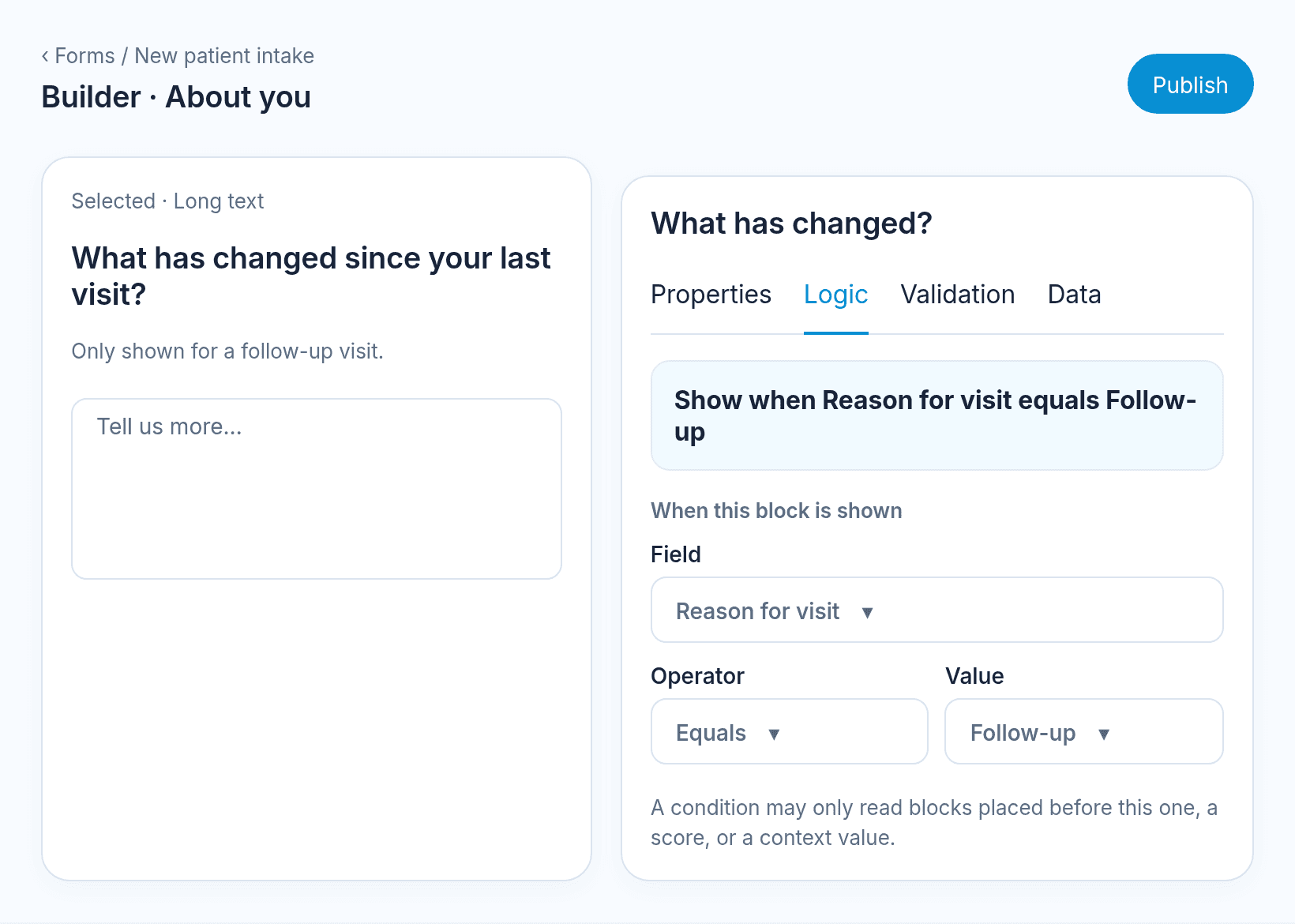
Logic uses a summary such as Show when Reason for visit equals Follow-up. An empty rule says Always shown. A hidden answer is dropped on submit.
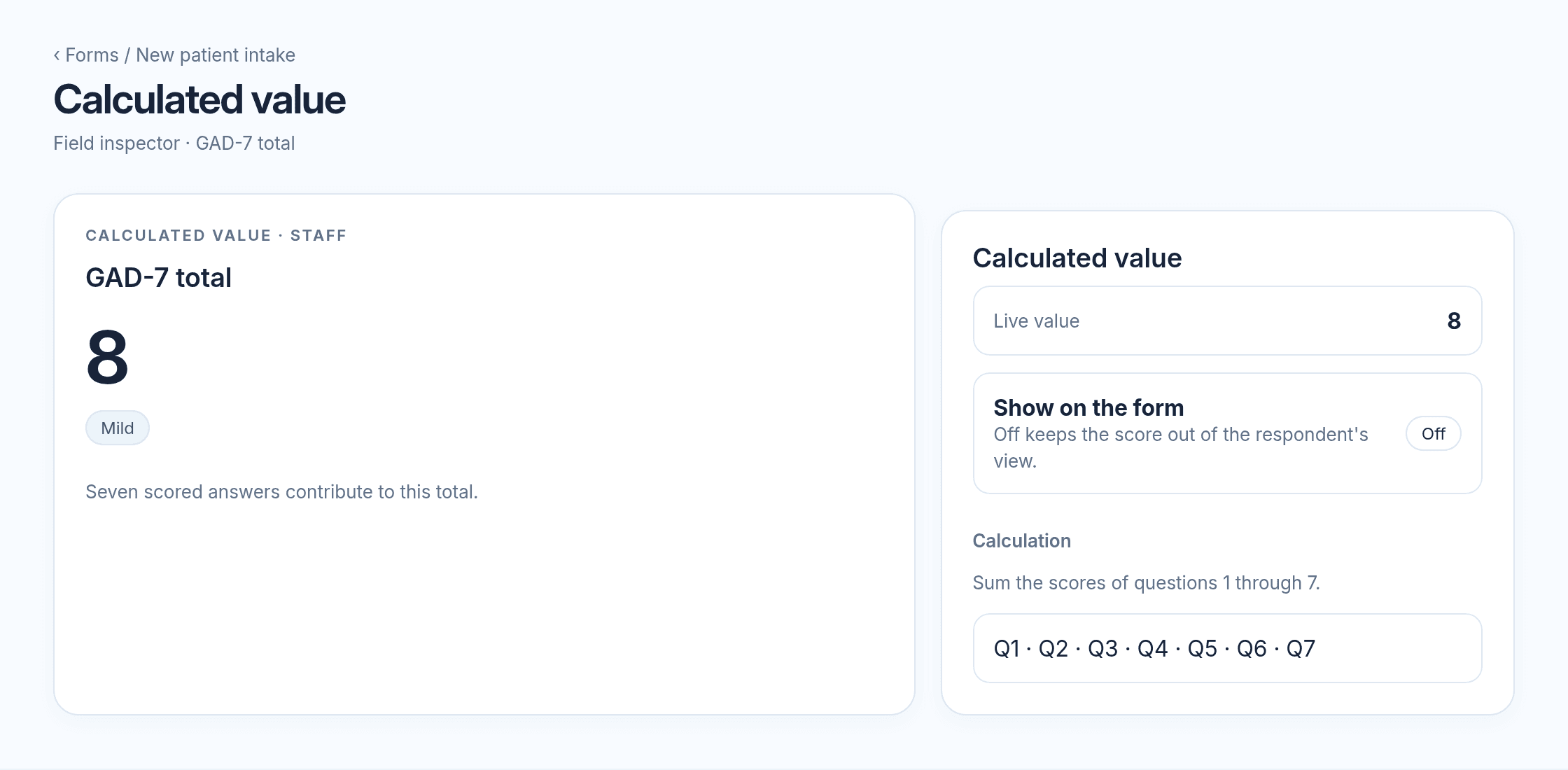
Calculated value computes a result from other answers, such as a total. An unanswered scored scale stays empty.
Validation is what counts as a valid answer: required, minimum, maximum, and the format for email, phone, and date fields. The patient sees the field’s validation message.
Data holds Audience, the field key, scoring, and whether the answer is included in export.
Theme and display
The Theme tab sets how the published form looks. Clinic default is one choice. Starter themes lists Nextvisit and Nextvisit night until the clinic adds them. The hint on Starter themes says: Picking one adds it to the clinic's themes so you can edit it. Manage themes opens the theme list.
Display is Classic or Conversational.
- Classic: Pages of fields.
- Conversational: One question per screen. The hint says: One question per screen with Enter to continue. Motion follows the reduced motion preference.
Conversational is available after you pick Nextvisit or Nextvisit night. The hint on another theme says: Conversational needs a Nextvisit theme. Until one is picked the form renders classic.
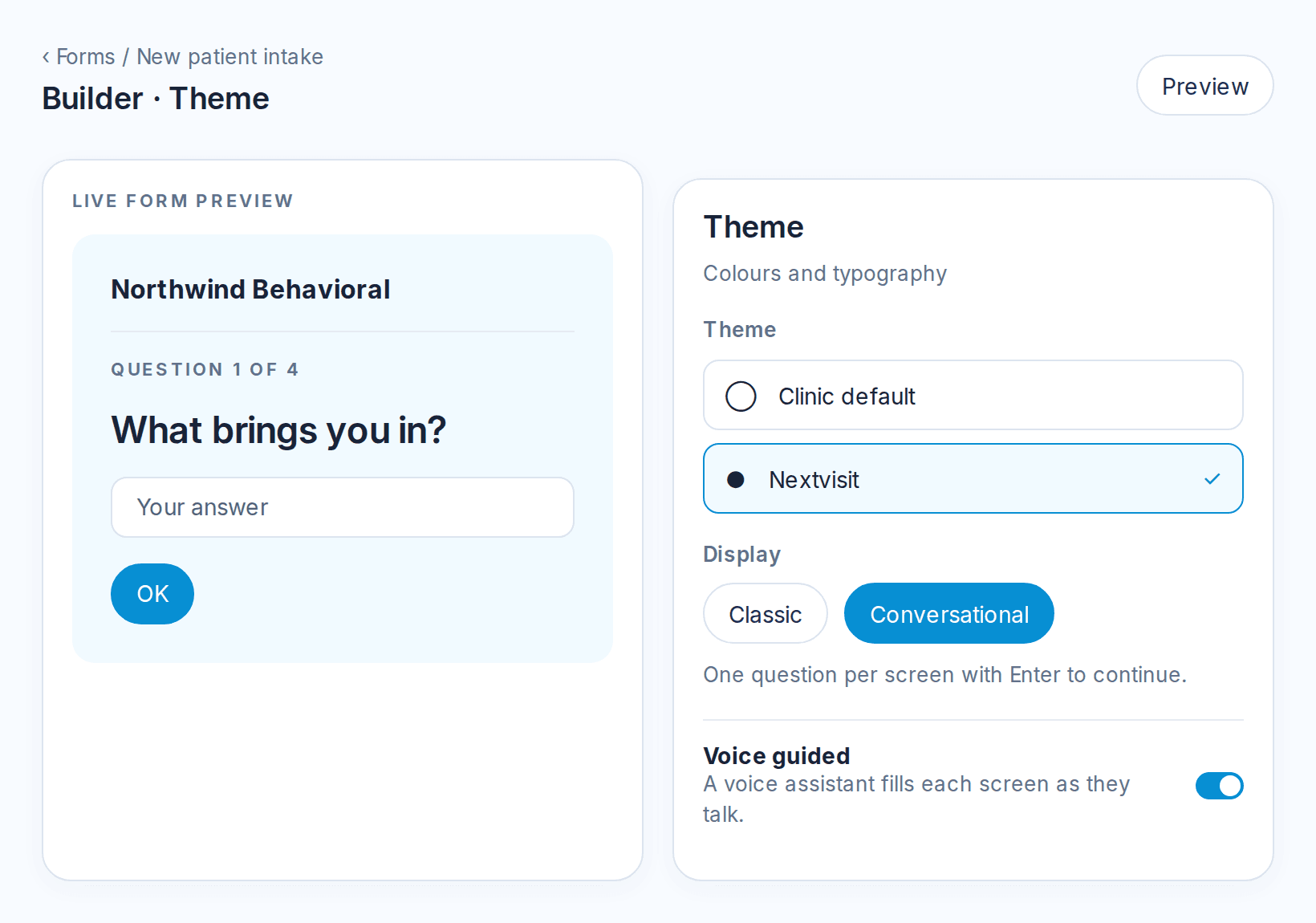
On a conversational screen the button reads OK for a question and Continue for a statement. The last screen uses the submit label. The hint says press Enter. Previous question and Next question move between screens. Arrow up and Arrow down do the same when focus is outside a field. Yes or no, single choice, rating, and net promoter score can advance on their own. The counter reads like 1 of 4.
Voice guided sits under Display on Classic and Conversational. The text says: A voice assistant interviews the patient and fills each screen as they talk. Patients can still tap through on their own.
Force this theme in embeds says: Ignores the host page's styles.
Form settings
The Settings tab includes:
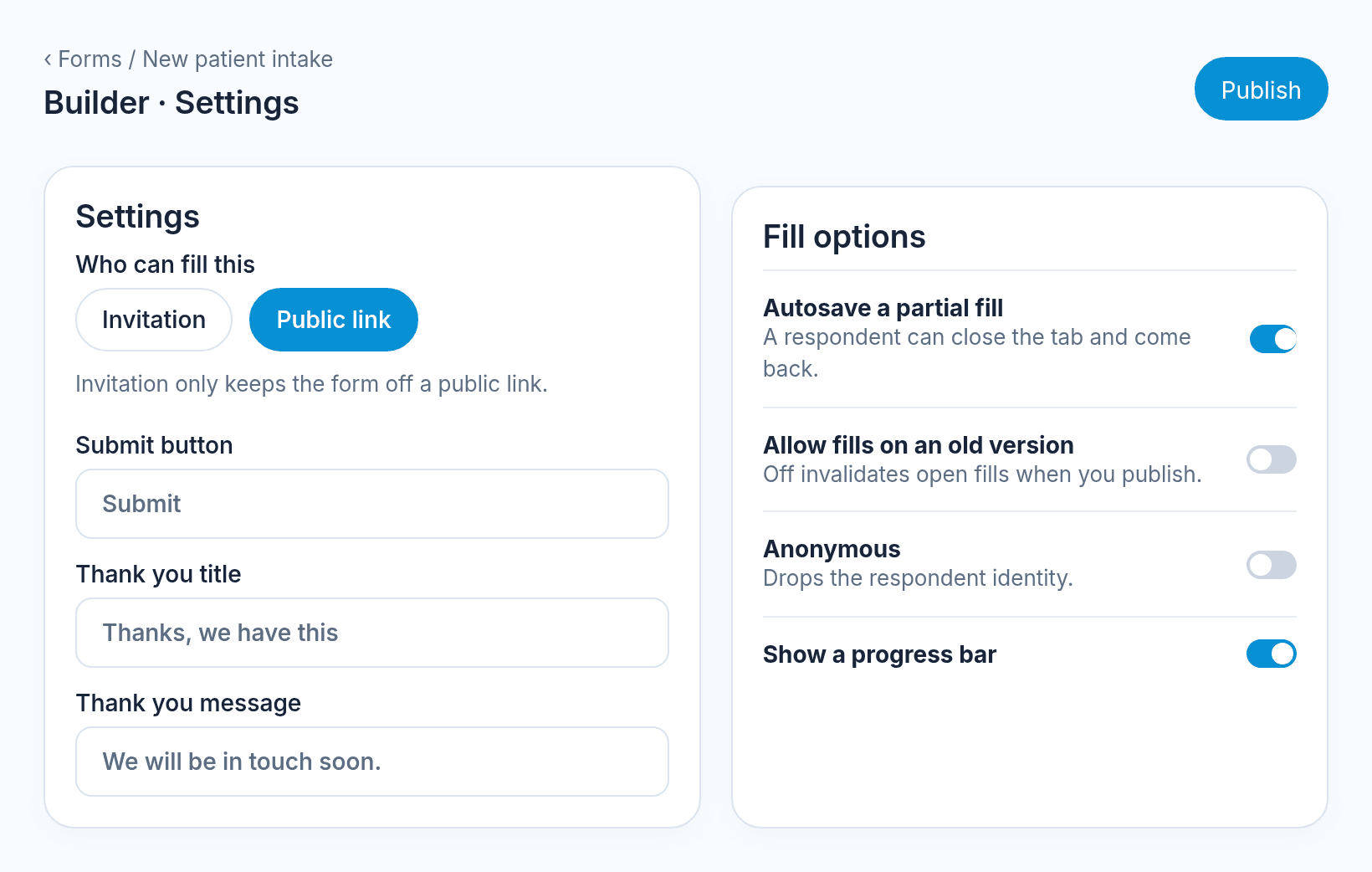
Who can fill this:
- Invitation: The hint says: Invitation only keeps the form off a public link.
- Public link: Anyone with the link can open it.
Other settings:
- Submit button
- Thank you title and Thank you message. The message hint says: Template values such as patient.first_name are allowed.
- Redirect after submit: An https address the respondent lands on instead.
- Autosave a partial fill: A respondent can close the tab and come back.
- Allow fills on an old version: Off invalidates open fills when you publish.
- Anonymous: Drops the respondent identity from the submission.
- Show a progress bar
- Allow search engines: Only the bare public link. An invitation or a resumed draft stays out of search.
- Autosave retention: Days a partial fill is kept.
- Embed origins: Origins allowed to embed this form.
Page and link preview sets Page title, Description, and Link preview image. Header branding is Hidden, Logo only, Practice name only, or Logo and practice name.
Respondent footer sets Practice logo and Footer branding. Footer branding is Logo only, Practice name only, or Logo and practice name.
Protection includes Captcha: Off, On suspicion, or Always. The hint says: Turnstile runs on the public page only. When a check is required, the fill page says: Finish the quick check below, then submit.
Publishing creates a new version. A second submit of the same fill shows the thank-you page for the submission that was already saved.
Share
Open Share on a published form. Until you publish, sharing says Publish to open sharing or Publish the form first.
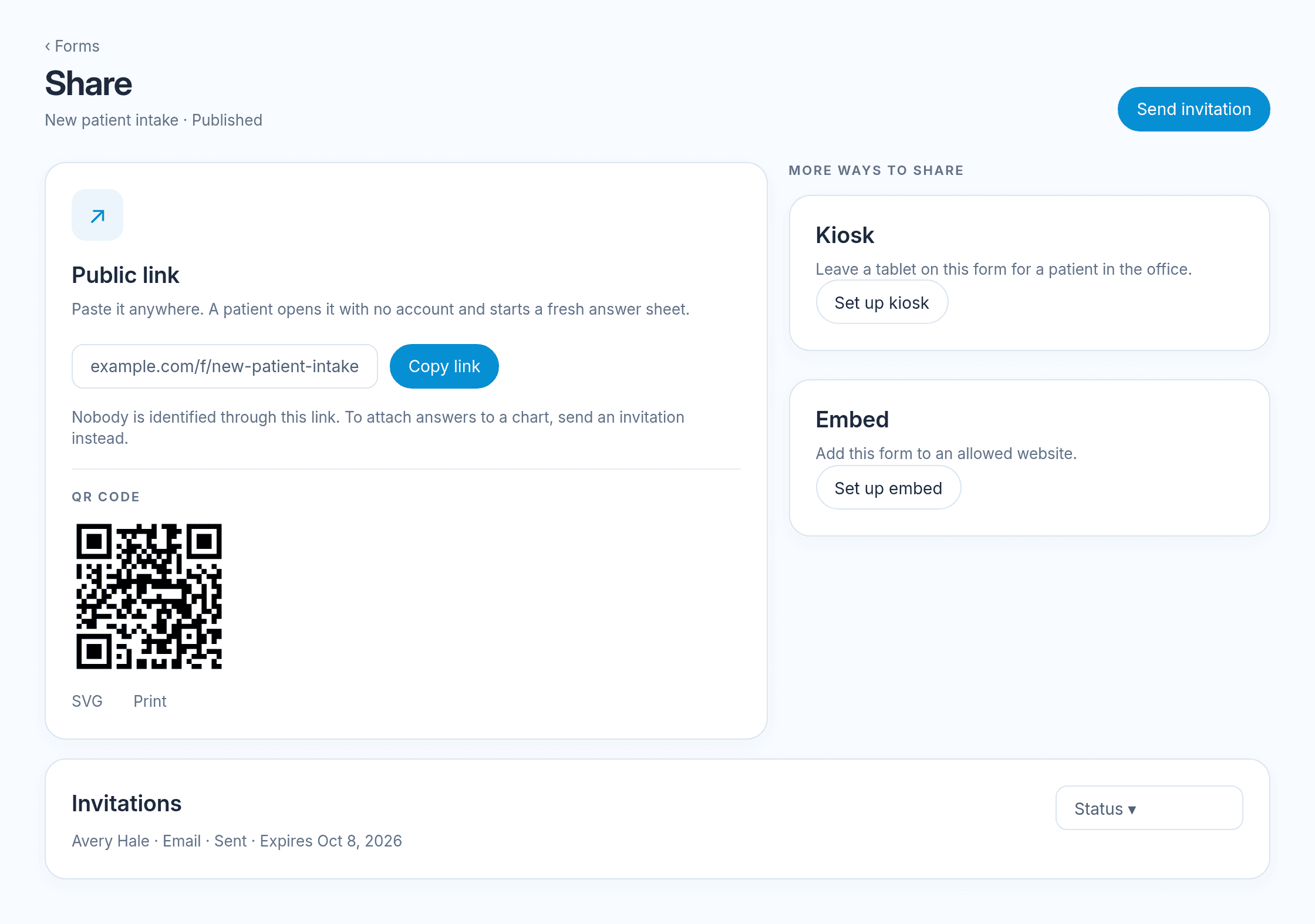
The share tools are:
- Public link: A shareable address for this form. Copy it. An invitation-only form says: This form is invitation only.
- Invitations: Email or text a patient a one-time link. Send this form asks for one patient or a matching group. The buttons are Send invitation and Send to everyone matched. Kiosk on an office tablet asks for an Exit PIN. Send a reminder is optional. The table statuses are Not sent, Sent, Opened, Completed, Expired, Revoked, and Used up. Revoke this invitation closes a live link.
- QR code: Print a code for the waiting room. The caption reads: Scan to open, followed by the form name.
- Kiosk: Hand a tablet to a patient in the office. The share card is Office kiosk. Set a 4-digit Exit PIN, then Start kiosk session.
- Embed on your site: Copy a snippet into a site you list under Embed origins.
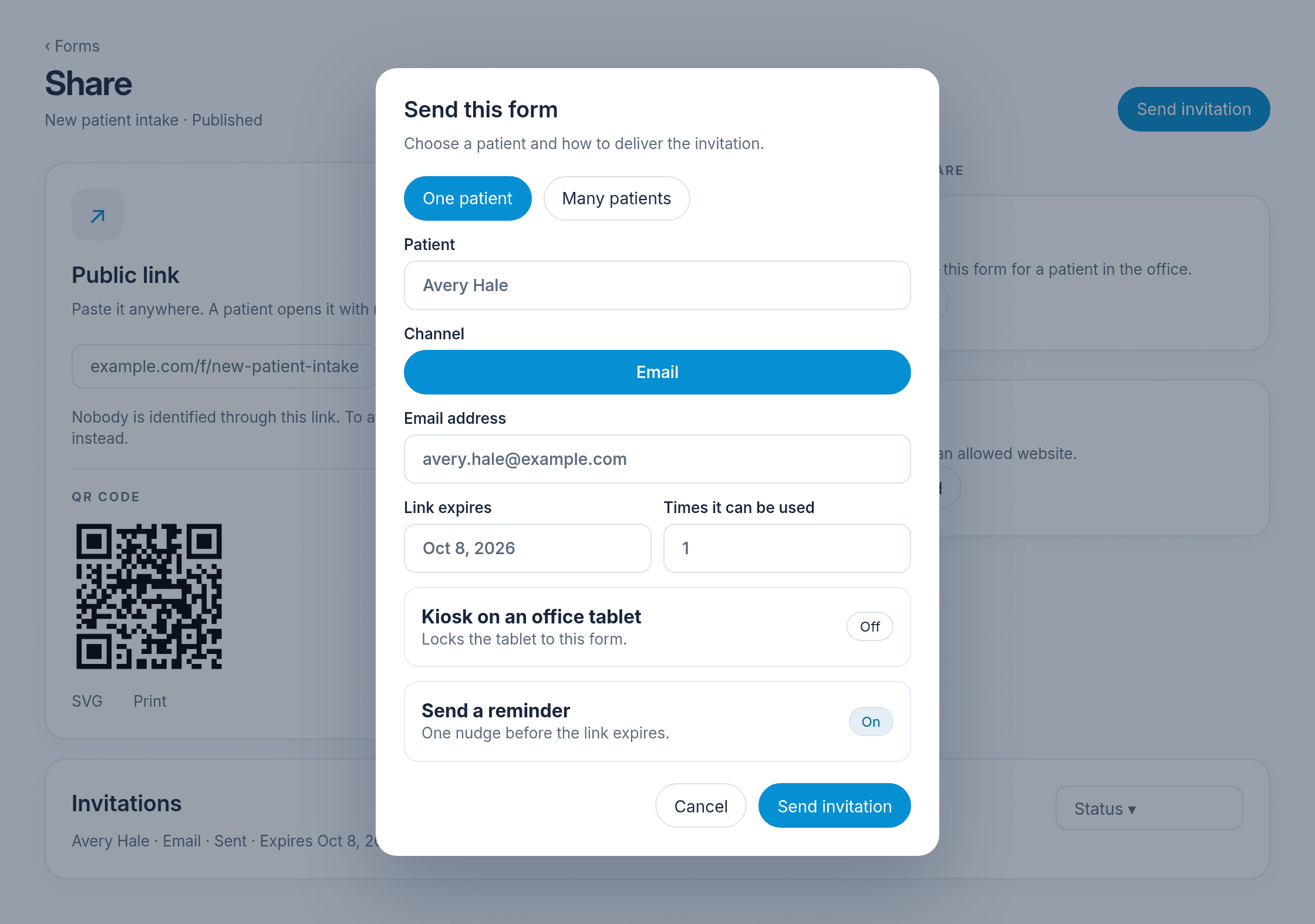
You can also send a form from the patient chart.
What the patient sees
The patient opens the link, invitation, QR code, embed, or kiosk. The form uses the published theme and Display setting.
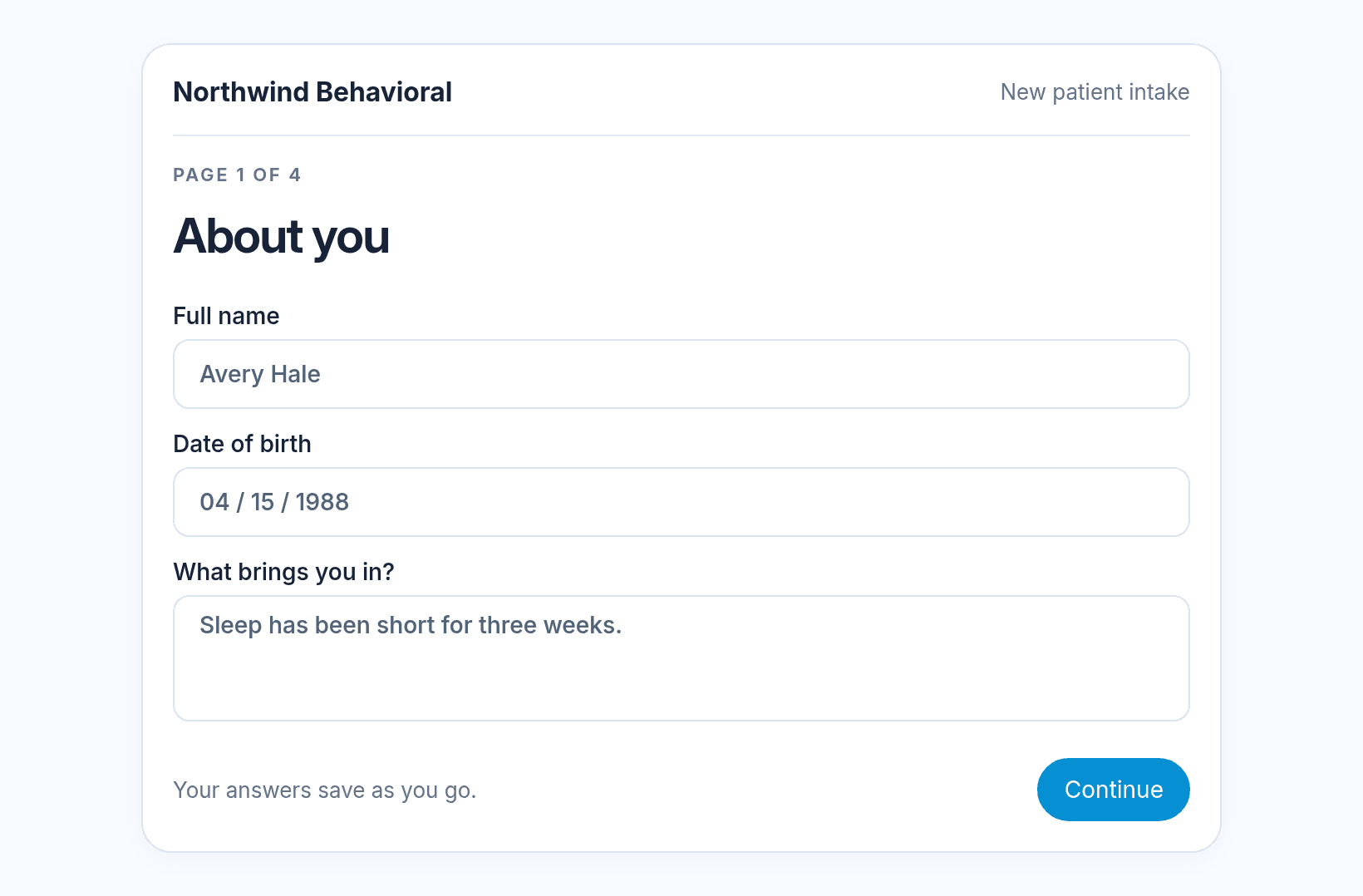
Answers save as a draft when autosave is on. The page says Answers saved. If saving is paused, it says: Saving is paused. Your answers still send when you submit. On submit, the patient sees the thank-you title and message, or the redirect address.
With Voice guided on, Talk me through it starts the assistant. The patient can still tap through. While the assistant is speaking, the status is Speaking · tap to interrupt. The button is Interrupt and speak. Other statuses are Connecting…, Listening, and On the call. A countdown shows the time left. The assistant can add more time once. End voice guidance stops the call. When the time ends, the page says: The voice session ended. Your answers are still here; keep going on screen.
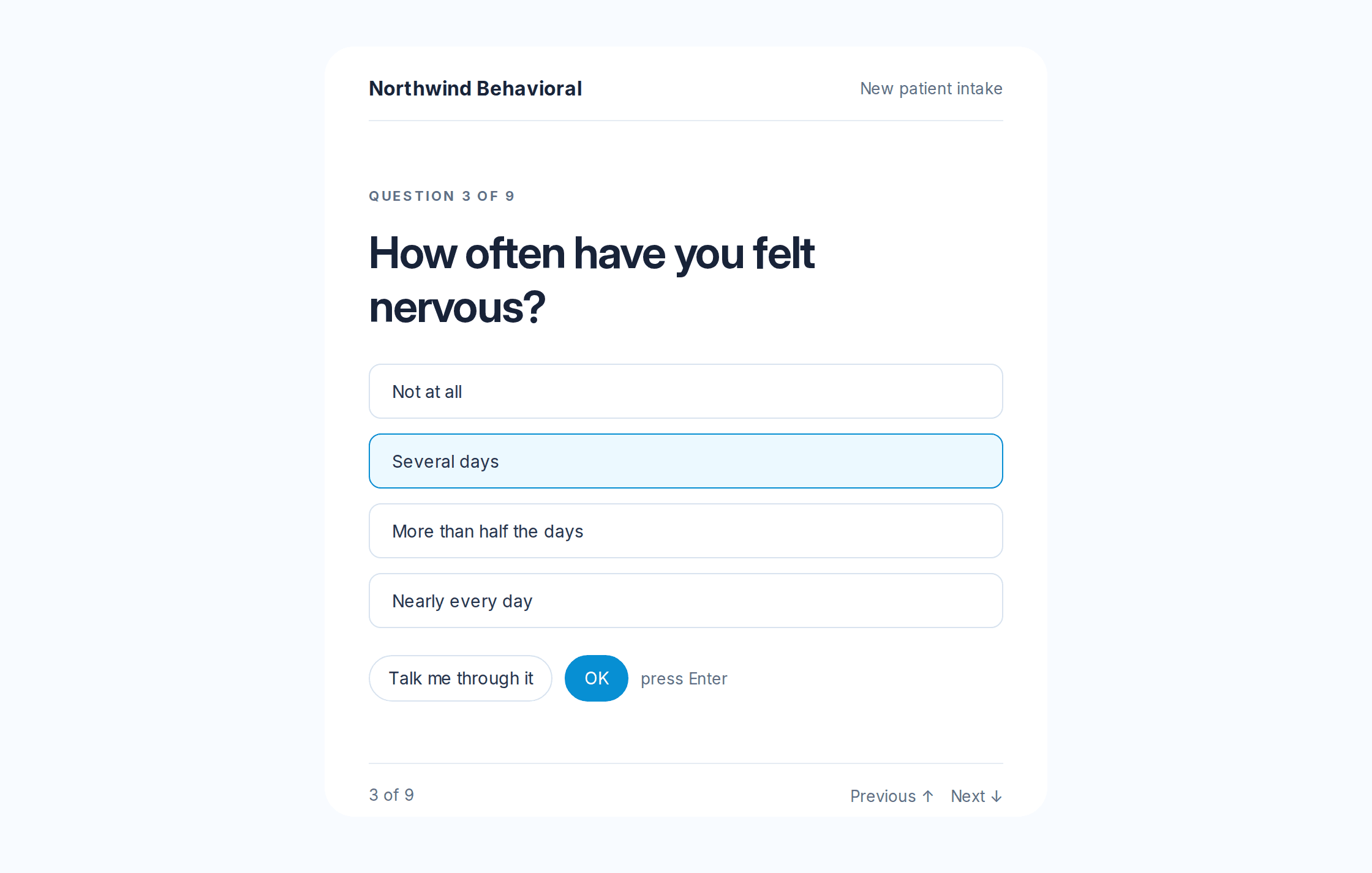
The assistant records answers on the current screen and on screens already shown. At the end of a page it asks whether the patient has questions or wants to change anything in that part. On the last screen it asks the patient to review the form and press Submit. Signature, initials, file upload, photo upload, insurance card, patient lookup, and clinical scale stay on the screen for the patient to complete.
If the browser cannot use the microphone, the page says: Voice needs a secure browser with microphone access.
A closed invitation shows This link was turned off. The text says: The clinic closed this link. They can send you a new one. An expired link shows This link has expired. A second open of a finished fill shows This form was already submitted.
On a kiosk, after submit the page says All set, thank you. The next line asks the patient to hand the device back to the clinic team and includes the clinic name. Start the next form begins another fill. Staff exit asks: Enter the 4 digit exit PIN. Unlock leaves the kiosk. A wrong PIN says: That PIN did not match.
Review submissions
Open Submissions from the form row. The queue lists each response with its status and any scale score. The heading is the form name. A patient with no name shows as Anonymous.
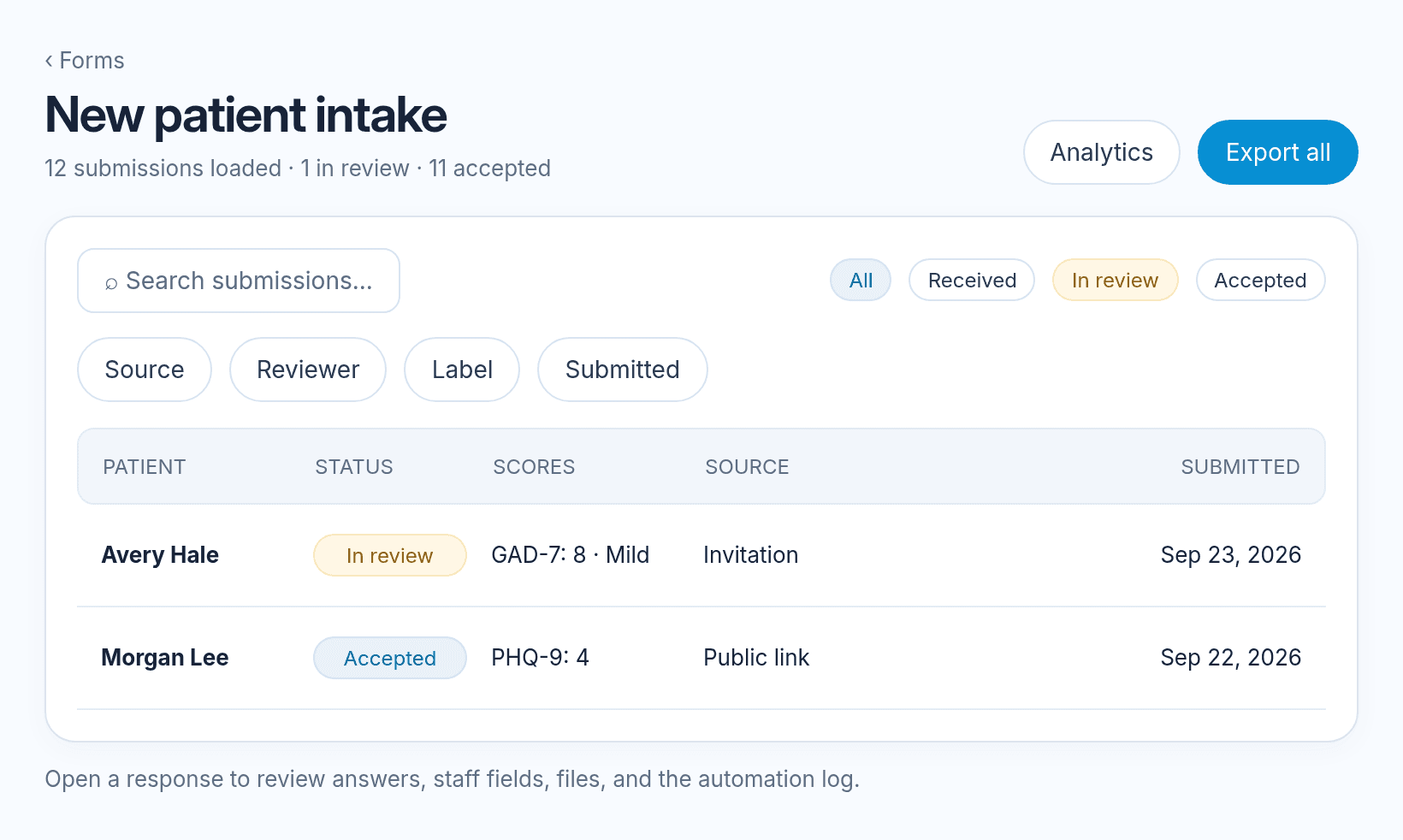
Statuses are Received, In review, Accepted, Rejected, and Archived.
Open a row for the answers, staff fields, files, and the automation log. Export all offers CSV and PDF. A large export says: Export queued. You will get a notification when it is ready.
Save a PDF can file the submission under Patient chart documents. The Files app is available for inquiry and survey forms. The step says: Inquiry and survey forms only, because the Files app runs document intelligence on every upload.
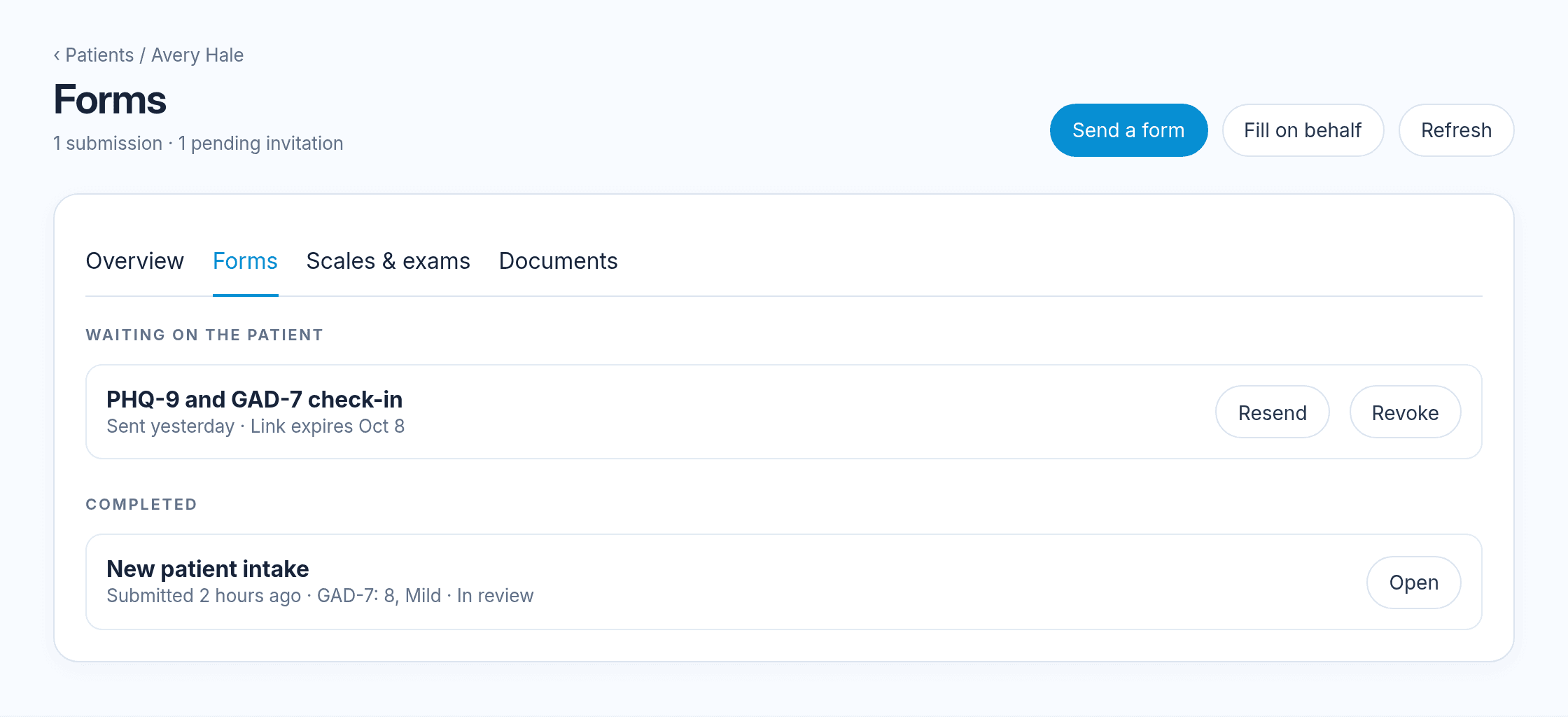
On the patient chart, the Forms tab lists submissions and invitations that are still open. Send a form and Fill on behalf are on that tab. An empty tab says: Forms sent to this patient appear here.
On a session, the pre-visit panel lists submissions under On this visit and Since the last visit. Attach to this visit and Add to context are on those rows. An empty panel says: No pre-visit forms for this session. Embedded scales also appear under Scales and exams.
The classic dashboard shows Forms to review when the Forms app is on. Open queue opens that form’s submissions.
Notifications include Form submission received, Form assigned to you, and Form automation failed. They appear under automations. See Notifications.
Automations
Open Automations on the form. The heading is Automations. An automation runs when a trigger matches, then runs its steps in order. A failed step keeps the submission and the steps that already ran.
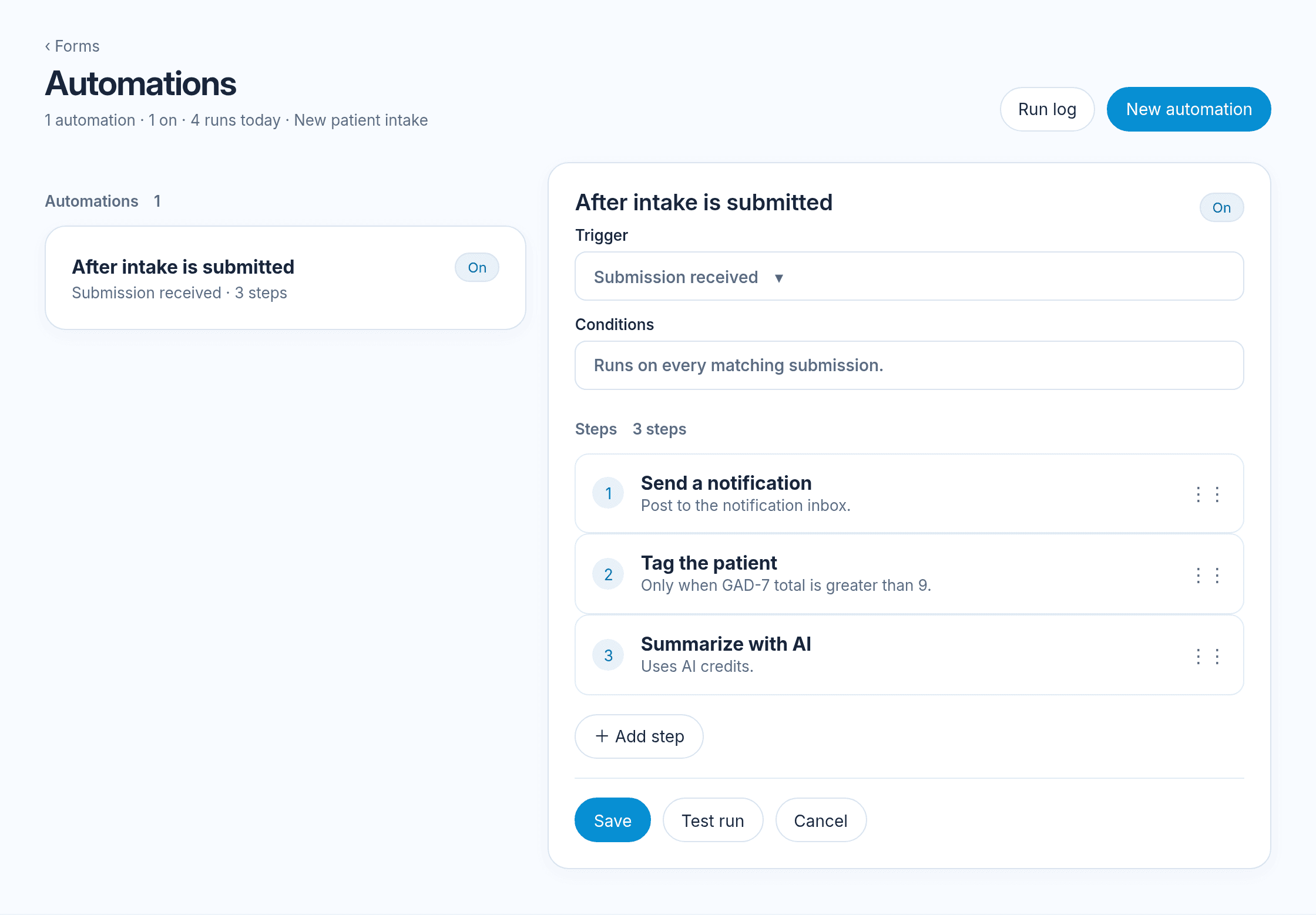
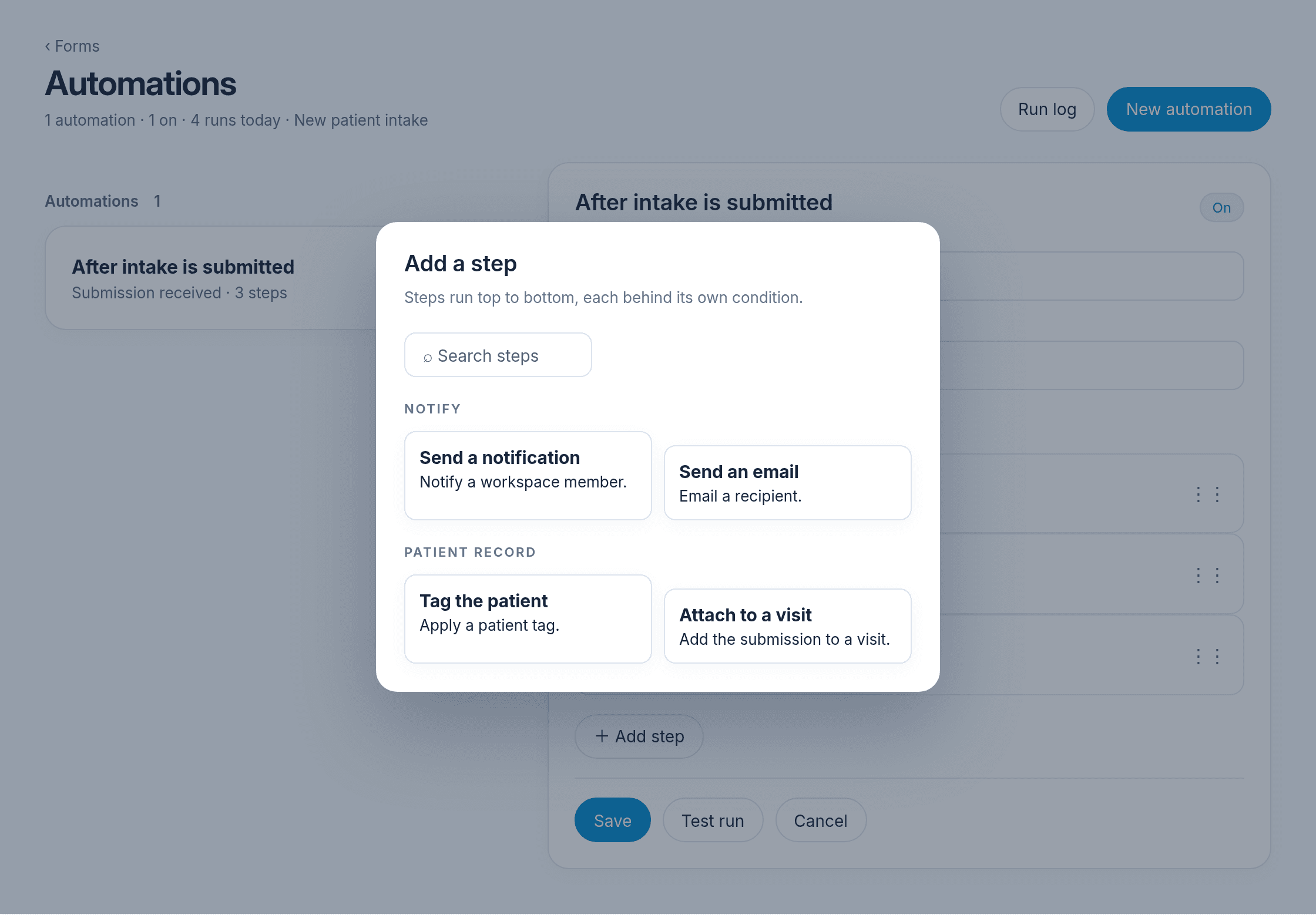
Add step opens the step list. Test run checks the steps. Run log shows each step’s result.
Triggers:
- A submission arrives
- A submission is accepted
- A submission is rejected
- An invitation expires
- An invitation goes unanswered
Steps:
- Send a notification
- Send an email
- Send a text message. The step says: Sends a link by text message. Disabled until a messaging profile exists.
- Tag the patient
- Update the patient record
- Attach to a visit
- Save a PDF
- Call a webhook
- Run an AI task. This starts an automation whose trigger is Form submitted. See AI Tasks and Automations.
- Fill staff fields with AI
- Summarize with AI
- Set the review status
- Assign a reviewer
- Stop here
Each step can run only when its own condition matches. Fill staff fields with AI writes staff fields. Summarize with AI writes a summary on the submission. Both use the clinic AI credit balance. See Usage.
Analytics
Analytics shows Completion funnel, Drop-off by page, Where submissions come from, Time to complete, Answer distribution, and Score trend for fields that have a closed set of answers.
If something looks wrong
- The public link says the form is not available. Publish the form, or switch Who can fill this to Public link.
- A patient who started before you published sees a version error. Turn on Allow fills on an old version, or ask them to open the link again.
- Conversational layout still shows pages. Pick Nextvisit or Nextvisit night.
- Talk me through it is missing. Turn on Voice guided under Display.
- A revoked link shows This link was turned off. Send a new invitation.
- A submission has no patient. Use Patient lookup, an invitation sent from the chart, or link the patient from the submission.
- An automation step failed. Open Run log on that form. The submission is still saved.
Was this article helpful?
Still stuck? Our team answers in the messenger.