Insurance billing
Check Insurance Eligibility
Review policy and service details, request payer coverage, and prepare upcoming visits.
Last updated: 2026-10-04
Open Coverage, then Eligibility, to request coverage for a specific patient, clinician, and service date. These steps apply to workspaces with Insurance enabled.
Before you start
Complete connection and provider setup. Your workspace needs an active connection that allows insurance requests to be sent, a billing clinician, and the patient's policy. Workspace owners, administrators, staff, and editors can check coverage.
Select the intended environment first. Use synthetic patient records with a Claim.MD test account or a Stedi test API key in Test environment.
Request coverage
-
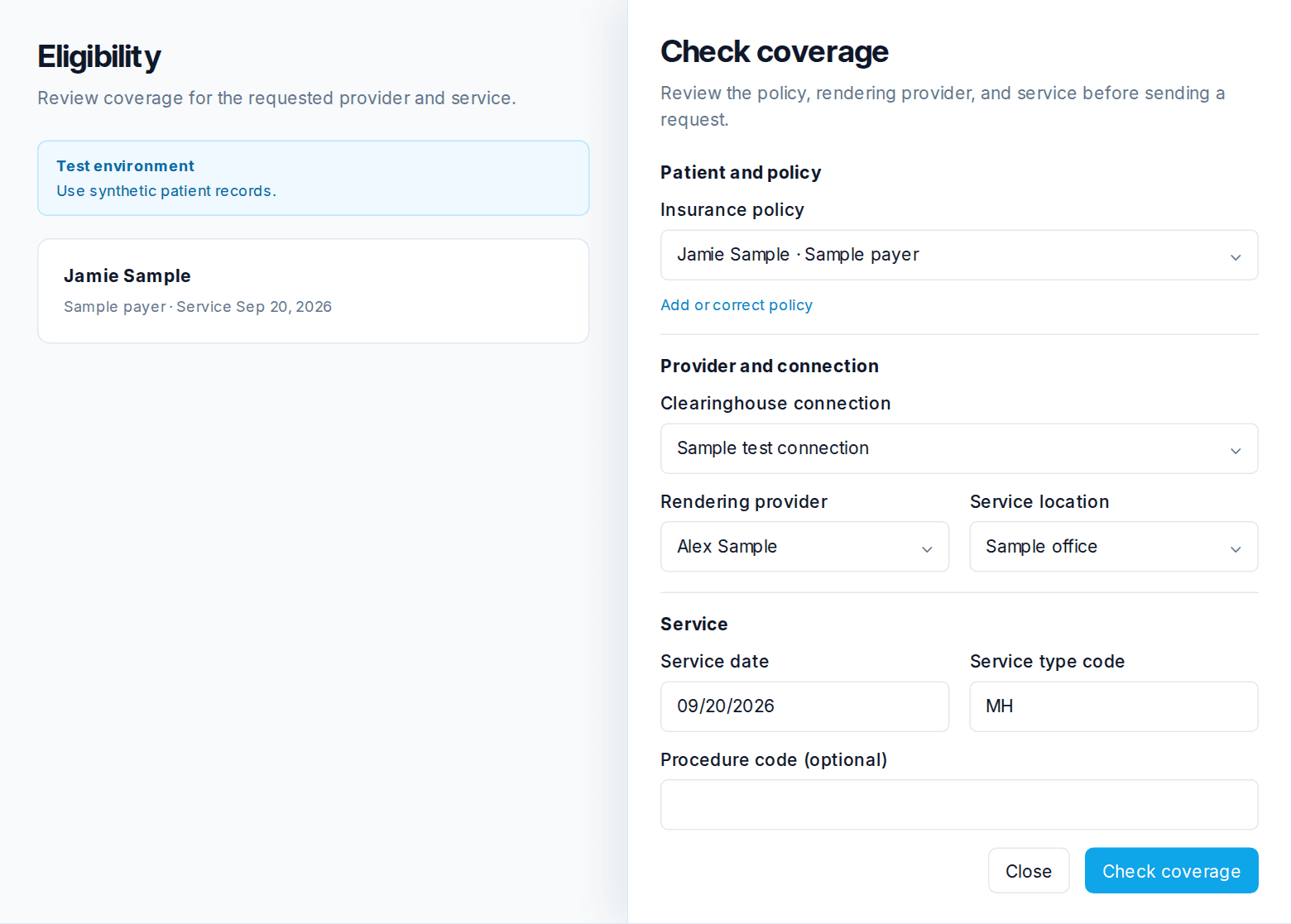
Select Check coverage and choose the patient.
-
Select the Insurance policy. If coverage is missing or incorrect, select Add or correct policy, save the policy, then select Return to coverage check. When the policy relationship is Dependent and the patient has a separate member ID, select Patient has their own member ID.
The same editor is on the patient chart Insurance tab.
Add a policy from an insurance card takes the card images. Drop the files, or select Choose Files…. JPEG, PNG, WebP, or PDF. Up to 5 files, 10 MB each. Select Upload & extract. Review the fields, then select Save.
If the card cannot be read, the message is: Unable to read insurance information. Try a clearer image or PDF. The files stay under Uploads awaiting a policy. Review as new policy opens them. Archive card removes one.
-
Select the Rendering clinician. If more than one billing identity is listed, select Billing identity. The form shows the clearinghouse account. Open Choose a clearinghouse to pick a Clearinghouse route, or leave Automatic route. Select Service location when it is shown.
-
Confirm the Service date and Service type. Enter a Service type code when you choose Another service type. Enter a Procedure code when the request needs one.
-
Select Check coverage.
The request appears in the eligibility list. Its request status updates as it is queued and processed. You can leave the page and return to the saved request.
Read the result
Open the request to review its coverage status, checked time, service, payer reference, and unresolved details.
AI benefit summary shows Estimated visit cost, Copay, Deductible remaining, and Coinsurance when those values are returned. Expand View payer sources on a benefit row. Expand Full payer response to inspect the retained response.
| Result | Meaning and next action |
|---|---|
| Succeeded | The request completed. Read the separate coverage and benefit results. |
| Unknown coverage | The response did not establish coverage. Review unresolved details or verify with the payer. |
| Inactive coverage | Review the policy and service date before correcting or repeating the request. |
| Not returned | The payer did not supply that benefit value. It is not a zero-dollar benefit. |
| $0.00 | The returned amount is zero. Review its service, network, coverage level, and period. |
| Legacy unverified | Obtain a new payer response before using the historical benefits. |
Active coverage does not guarantee payment. Use Authorizations to review authorization requirements and prepare an estimate from the applicable benefit evidence.
Prepare upcoming visits
- Open Overview and select Add visit. The form title is Add visit to preparation.
- Select the patient and Policy. Select the Rendering clinician, and Billing identity when more than one is listed. The coverage route is shown. Select Service location when it is shown, then the visit date and time and service details.
- Select Run scheduled eligibility checks before this visit if you want a scheduled check.
- Select Add visit.
- In Visits to prepare, select the visits to check and choose Check coverage.
Each selected visit uses the clinician, policy, and service saved on that visit. This list contains visits entered by your workspace; it does not import a calendar automatically. Cancel visit removes a visit from the preparation list.
Retry or resolve a request
For a policy-loading error, select Retry. For a saved request, correct the displayed issue and use Recheck coverage. Use Refresh after automatic refreshing pauses. Cancel queued request stops a request that is still waiting to run.
If the result is Outcome unknown, review the retained request and contact your administrator to reconcile it before sending another request. Open the printable insurance guide.
Was this article helpful?
Still stuck? Our team answers in the messenger.