AriaMD and automations
Using AriaMD
Open AriaMD from the sidebar, talk with Talk to Aria (Beta), and see remaining credits.
AriaMD is the assistant in Nextvisit. Open it from the sidebar row AriaMD, or press ⌘I (Mac) / Ctrl+I (Windows). The widget menu Open full Aria opens the full page at /chat.
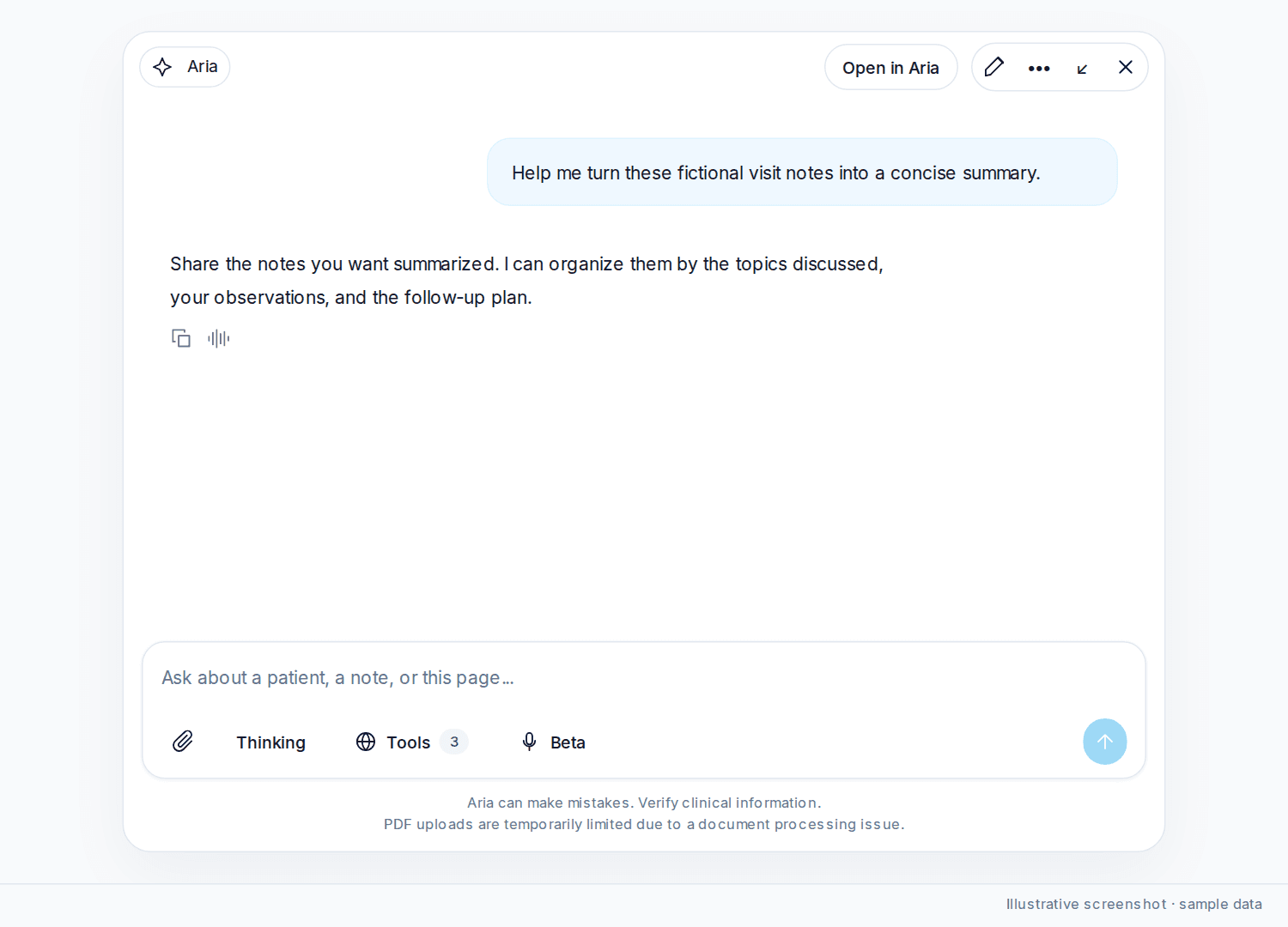
Aria can make mistakes. Verify clinical information.
Talk to Aria (Beta)
Voice is in Beta. The microphone button in the composer shows a Beta tag. Its screen reader label is Talk to Aria (Beta).
- Click the microphone button. Voice needs a secure browser with microphone access.
- Allow the microphone when the browser asks. The button is disabled while the session starts.
- When the button shows an audio waveform icon, speak to Aria. Aria answers out loud.
- Click the button again to hang up, including while Aria is speaking. Its screen reader label is Hang up (Beta) or Listening, tap to hang up (Beta).
There is no separate mute control. Hanging up ends listening.
Your speech and Aria's replies appear as messages in the chat and remain visible after you hang up. Text updates while you or Aria are speaking. Voice uses the same Web search, patient, and encounter tool settings as the chat.
If the microphone was blocked, the toast reads Microphone access was blocked. Allow it in the browser site settings to talk to Aria. After an error, the button reads Retry voice (Beta).
Files in chat
Paperclip → Upload file or Browse files. Image, PDF, or text. Up to 5 files, 25MB each.
PDF uploads are temporarily limited due to a document processing issue.
Patient-chart PDFs (Documents, note credits) are a separate upload. See Uploading Documents to Patient Charts.
Conversation titles
After the first message, the conversation list names the chat. On the full Aria page, open the conversation menu to Rename or Delete.
Remaining credits
The AriaMD header shows remaining credits as a number plus left. Hover for Used on AriaMD. Click the chip, or choose View usage and credits in the command palette, to open Usage filtered to AriaMD Chat.
From other pages: profile menu Usage & credits, or Settings → Usage. See Usage and credits.
Was this article helpful?
Still stuck? Our team answers in the messenger.