EHR connections
Practice Fusion Integration
Practice Fusion beta: SMART launch, what it pulls today, setup fields, and how to copy notes back.
Getting started
Nextvisit AI integrates directly with Practice Fusion. The integration is currently in Beta and available to all paid plan users at no additional cost.
What’s supported
Current:
-
Patient information access - Pull patient demographics and encounter details automatically
-
SMART launch - Open Nextvisit AI directly from a patient encounter in Practice Fusion
Coming soon:
- Direct note writing - Completed notes will save automatically to Practice Fusion (in development)
How to use the integration
Once set up:
-
Open a patient encounter in Practice Fusion
-
Launch Nextvisit AI from the patient view
-
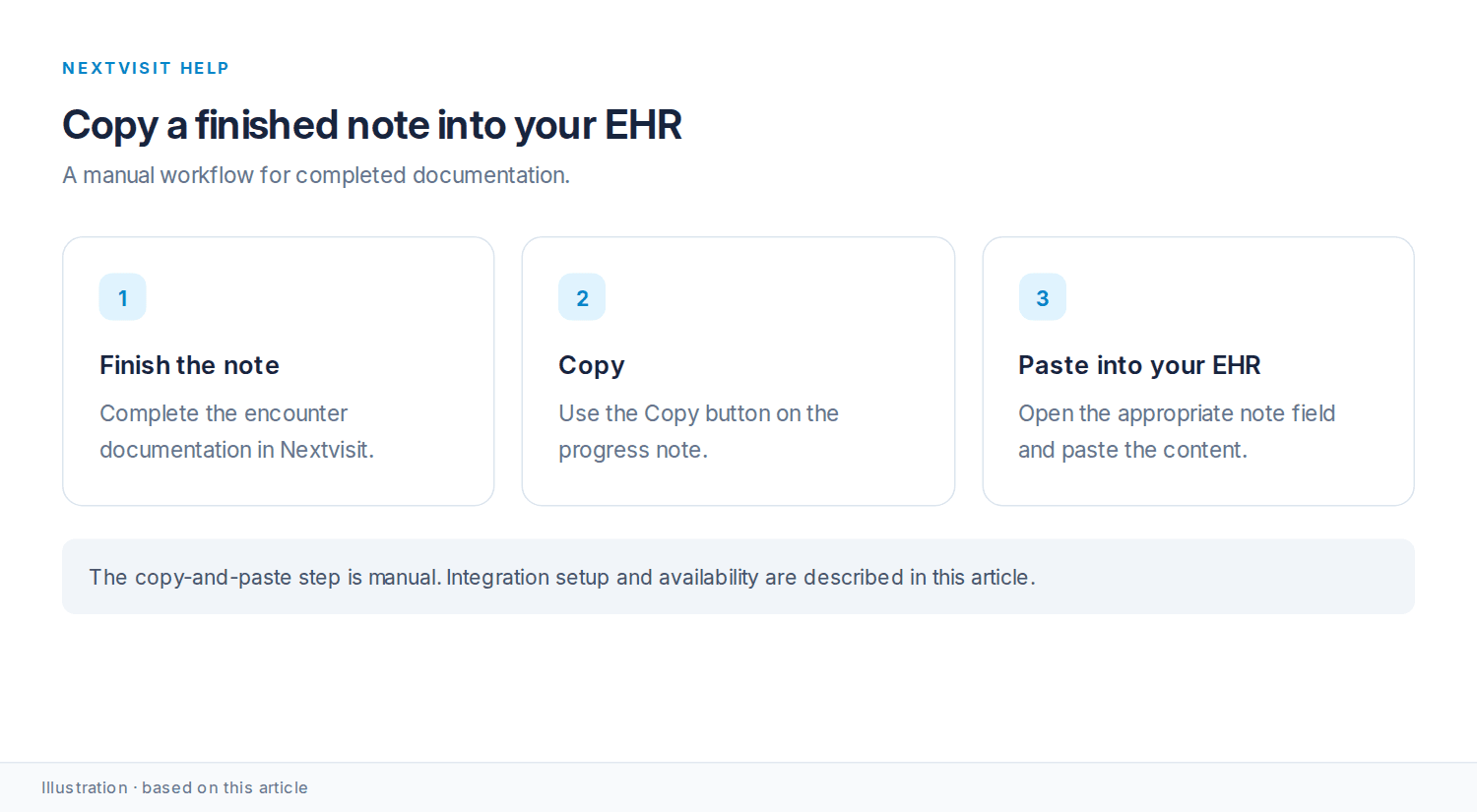
Complete your documentation as usual
-
Copy your finished notes back to Practice Fusion using the copy button on the note, or right-click a progress note in your list and select “Copy…” then “Note”
Setting up your integration
Setup requires a brief process on our end. To start:
-
Open chat at help.nextvisit.ai
-
Provide the following from your Practice Fusion account:
-
Practice ID
-
Practice name
-
Practice address
-
Practice phone number
The integration is officially supported by Practice Fusion and uses FHIR. For setup questions, open chat at help.nextvisit.ai.
Was this article helpful?
Still stuck? Our team answers in the messenger.