EHR connections
Nextvisit for Chrome
Install the Chrome sidebar, sign in, and drag note sections from Nextvisit into your EHR.
Nextvisit for Chrome is a side panel for the Chrome browser. It shows your Nextvisit sessions, notes, transcripts, and patients next to any tab, including your EHR. Data comes from your account at nextvisit.app.
Install
- Open the Chrome Web Store and search for Nextvisit
- Click Add to Chrome
- Click the Nextvisit icon in the toolbar. The tooltip reads Click to open the Nextvisit Sidebar.
The panel opens on the side of the browser window and stays open while you switch tabs.
Sign in
- In the panel, enter your Email and Password, or click Sign in with Google
- Check Remember me to stay signed in after the browser closes
- Click Login
If your account uses two-factor authentication, the panel asks for the 6-digit code from your authenticator app under Authentication Code. If email verification is required, enter the 6-digit code sent to your email under Verification Code. Click Verify.
Use the same email and password as nextvisit.app. Forgot password opens the reset page on nextvisit.app.
Sessions
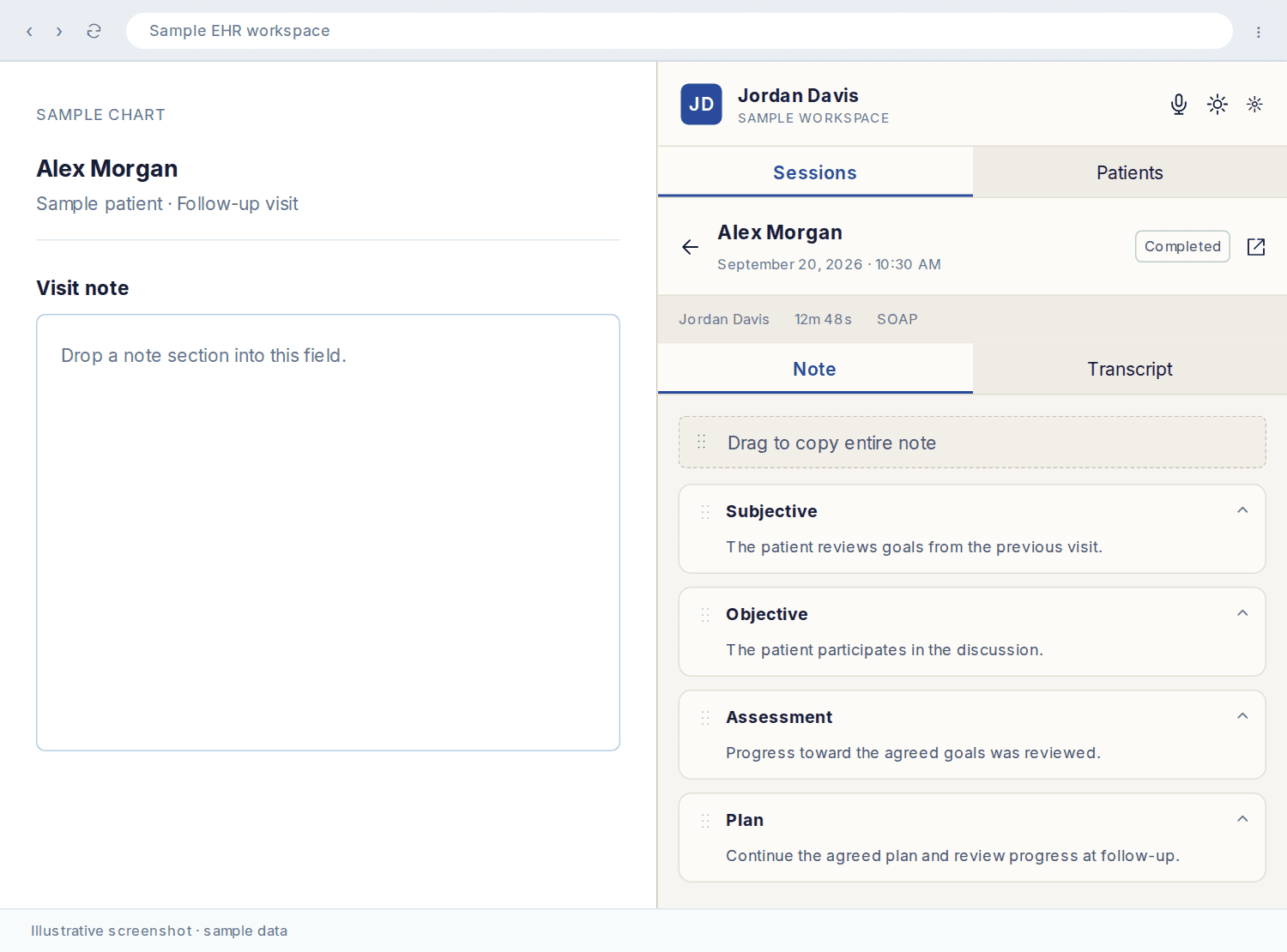
The Sessions tab lists Recent sessions. Scroll to load more. Click a session to open it in the panel, or use Open Full Encounter to open it on nextvisit.app in a new tab.
An open session has two tabs:
- Note: the note split into sections. While the note is still processing the panel shows Note is being generated.
- Transcript: the session transcript. While processing, the panel shows Transcription in progress.
Copy a note into your EHR
Each note section has a drag handle. Drag a section from the panel and drop it into a text field in your EHR or another application. The dropped text keeps the section heading.
Drag to copy entire note at the top of the Note tab drops every section at once.
Click a section to expand it and see its subsections. Subsections have their own drag handles.
Patients
The Patients tab lists your patients. Type in Search patients... to filter. Click a patient to open their chart on nextvisit.app in a new tab.
Header controls
- Open Recorder opens the Nextvisit recorder in a separate window.
- Toggle Theme switches between light and dark.
- Settings controls how note subsections appear and copy: Enable H2 subsections, Enable H3 subsections, Enable H4 subsections, and H2 includes nested content (when dragging an H2, include all H3/H4 content below it).
- The avatar menu shows your name and workspace, with Log out at the bottom.
Permissions
The extension uses permissions for the side panel, local storage, background operation, and Google sign-in. Storage keeps your sign-in and display settings.
The Practice Fusion integration reads selected data as Practice Fusion loads it, including patient details, medications, diagnoses, and allergies, and sends it to Nextvisit. Chrome also grants access to the Nextvisit services and monitoring services listed in the extension's site permissions.
Was this article helpful?
Still stuck? Our team answers in the messenger.